AI Selfie Generator for Realistic Scenes

Vismora's AI Selfie Generator uses one uploaded portrait as the reference for a new selfie in a scene you choose. Pick a scene category, setting, and photo feel, then edit the generated prompt; because the output is a newly generated image, review facial features, hands, clothing, and background details before you use it.

Part of Vismora's Professional Headshots toolkit.

Try AI Selfie Generator Now

Upload your photo and see the AI in action — free to try

Upload Image

Click to upload or drag & drop

JPG, PNG, WebP up to 20MB

Processing Mode

Sign in to get 12 free credits

Result

Your result will appear here

Want more advanced features? Try our full editor →

How It Works

Get professional results in three simple steps

1

Upload One Clear Portrait

Choose one JPG, PNG, or WebP image up to 20MB. Use a well-lit photo of one person with the face visible; sunglasses, deep shadows, motion blur, and a very small face give the model less reliable identity detail.

2

Build Your AI Selfie Scene

Choose a scene category first, then select one of the settings available inside it. Add a photo feel such as natural phone camera, golden hour, direct flash, or disposable camera, and edit the final prompt if needed.

3

Generate, Review, and Download

Generate the selfie for 10 credits, compare the result with your source photo, and inspect eyes, teeth, hair, fingers, accessories, and background geometry. Download the result only when the person and scene look right.

See It in Action

Real examples showing the transformation power of our AI

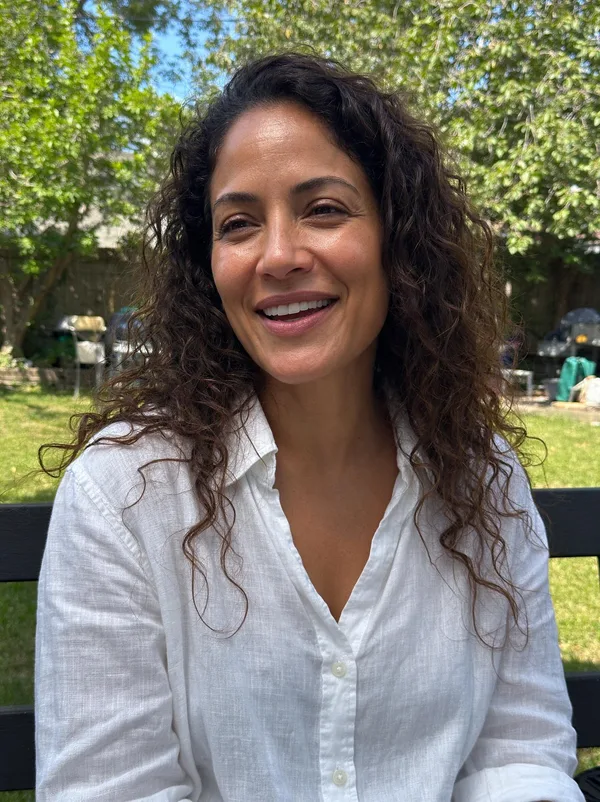
Before
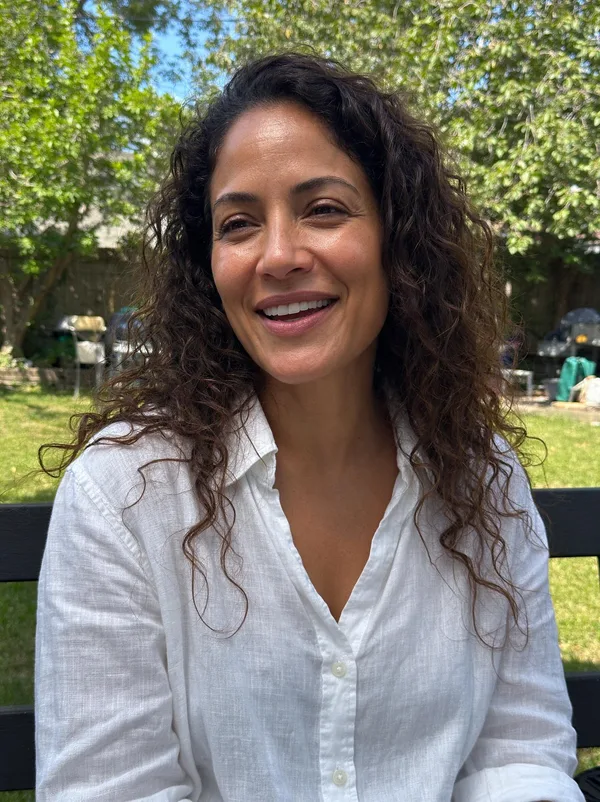
Before - Outdoor Portrait Recreated as a Café Window Selfie
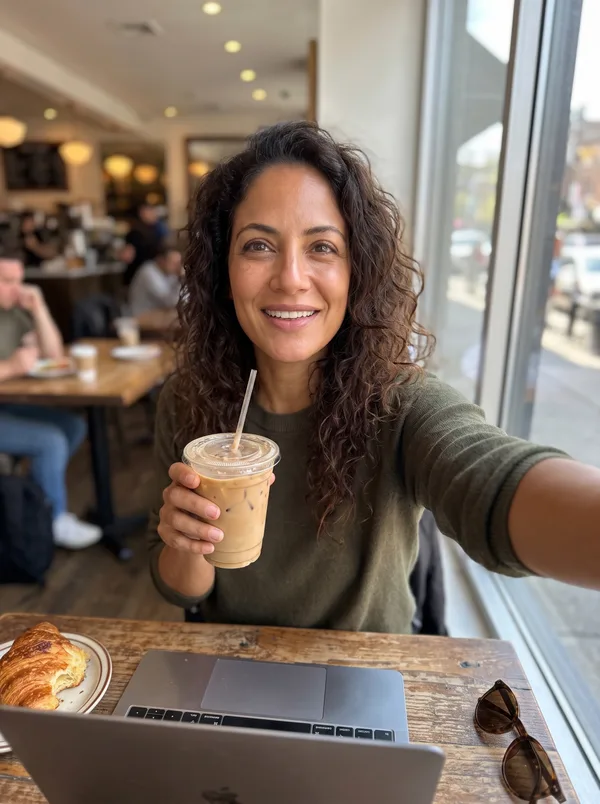
✨ AI Result
After - Outdoor Portrait Recreated as a Café Window Selfie

Outdoor Portrait Recreated as a Café Window Selfie

A close outdoor portrait becomes a handheld café selfie beside a bright window. The generated result keeps the woman's recognizable curly hair, skin tone, and smile while rebuilding the scene with an iced drink, laptop, croissant, olive sweater, extended camera arm, and softly blurred tables; compare facial details with the source before using it.

Café Window SeatEveryday SelfieNatural Phone Camera
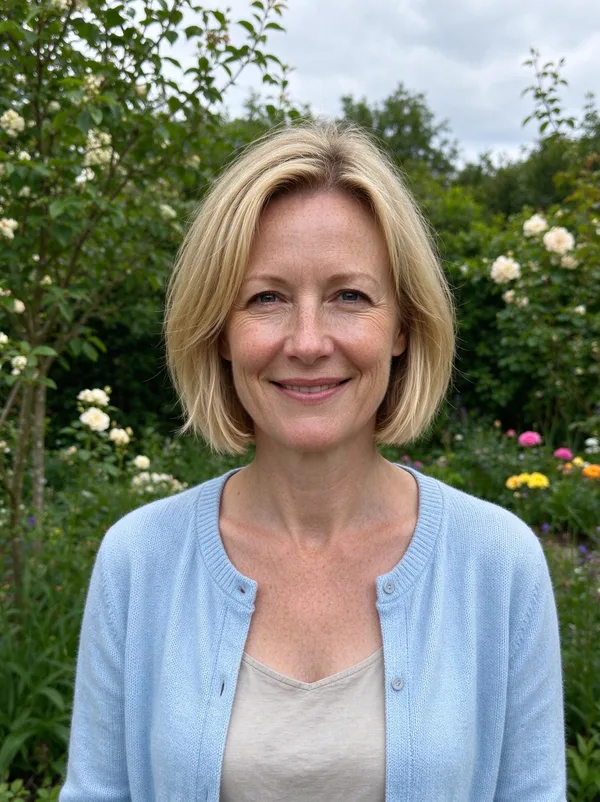
Before
Before - Garden Portrait Turned into a Sunset Hotel Balcony Selfie
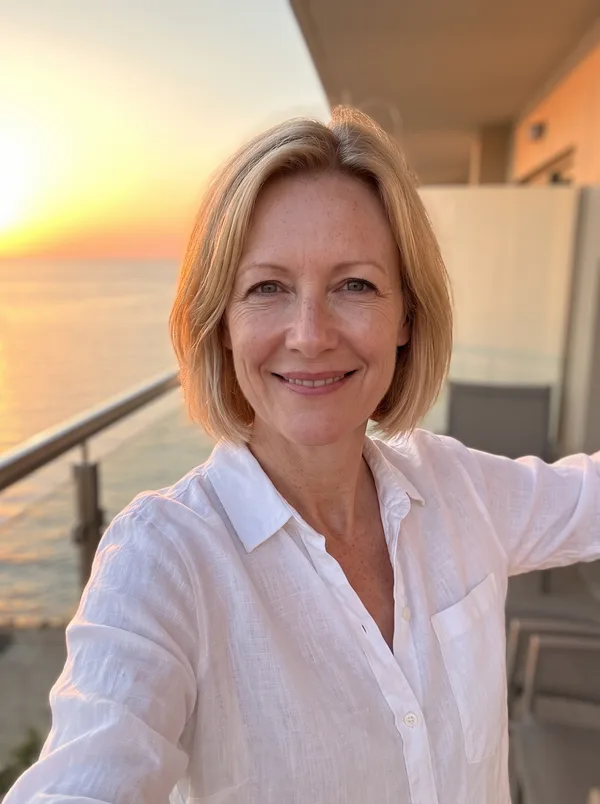
✨ AI Result
After - Garden Portrait Turned into a Sunset Hotel Balcony Selfie

Garden Portrait Turned into a Sunset Hotel Balcony Selfie

A front-facing garden portrait is regenerated as an arm's-length travel selfie on a hotel balcony at sunset. The short blonde hairstyle, light skin tone, and smile remain recognizable, while the blue cardigan and garden are replaced by a white shirt, sea view, balcony railing, and warm backlight.

Hotel BalconyTravel SelfieGolden Hour
Before
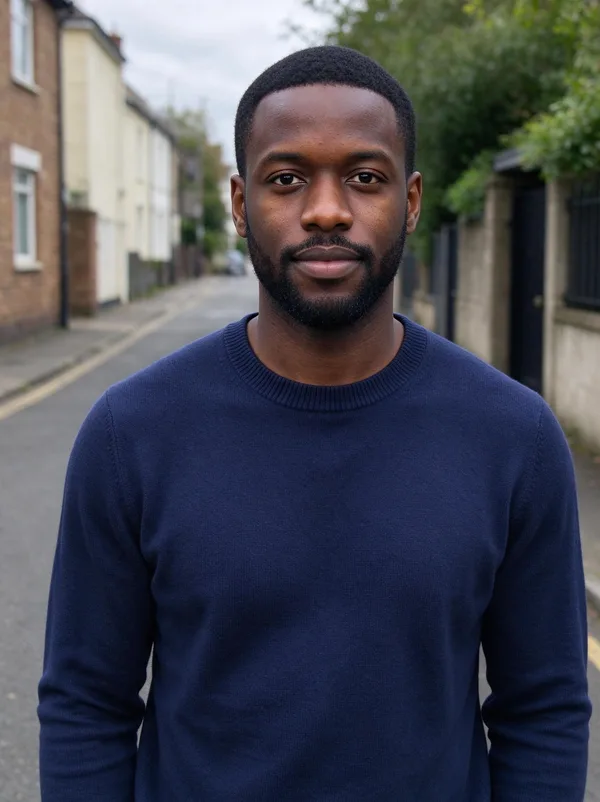
Before - Street Portrait Reframed as a 0.5x City Selfie
✨ AI Result
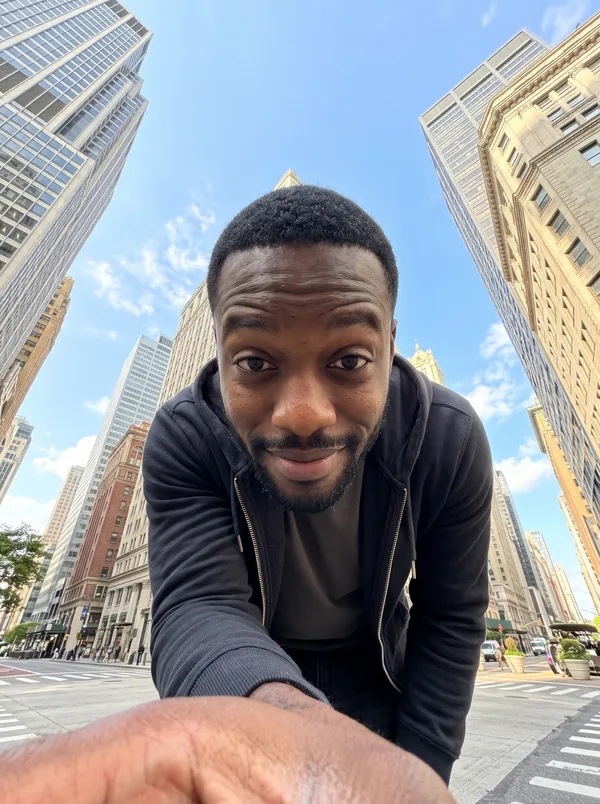
After - Street Portrait Reframed as a 0.5x City Selfie

Street Portrait Reframed as a 0.5x City Selfie

A conventional eye-level street portrait becomes a playful low-angle 0.5x selfie between tall city buildings. The result retains the man's recognizable face, skin tone, cropped hair, and beard while changing the navy sweater to a dark hoodie and exaggerating the near hand and wide-angle perspective.

0.5x Wide-AngleCamera TrendCity Selfie
Before
Before - Outdoor Portrait Restyled as a Holiday Lights Selfie
✨ AI Result
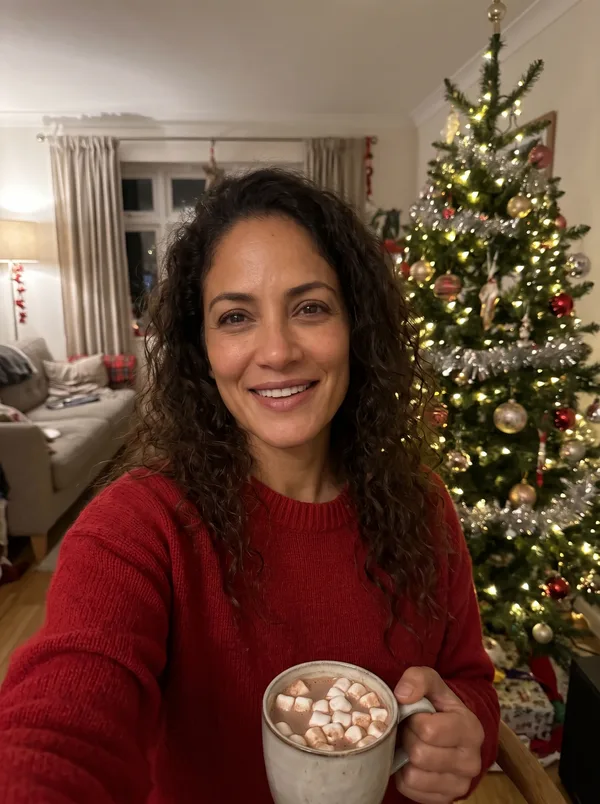
After - Outdoor Portrait Restyled as a Holiday Lights Selfie

Outdoor Portrait Restyled as a Holiday Lights Selfie

The same outdoor reference portrait used in the café example produces a second scene: an indoor holiday selfie beside a decorated Christmas tree. The generated image keeps recognizable hair, skin tone, and smile cues while adding a red sweater, hot chocolate, warm room light, ornaments, and wrapped gifts.

Holiday LightsSeasonal SelfieIndoor Phone Photo

Key Features

Powerful tools designed for professionals

Category-Based Selfie Scene Picker

Start with everyday, mirror, travel, landmark, night, trend, or seasonal scenes. The second selector updates to show only settings that belong to the category you chose.

Detailed Scene Instructions

Each setting contributes place, activity, framing, and environmental cues to the prompt instead of sending the model a vague one-word scene label.

Editable Photo Feel

Combine the selected scene with a natural front-camera look, warm golden-hour light, direct phone flash, or a restrained disposable-camera treatment.

Identity-Aware Prompt Foundation

Every combination asks the model to use the upload as the only identity reference and retain recognizable facial structure, skin tone, age, and hair while avoiding heavy beauty filters.

How Does Vismora Compare?

See why professionals choose our platform

FeatureVismora AI SelfieRetake a SelfieManual Composite
Starting pointOne uploaded portrait plus scene controlsA phone, location, outfit, and available lightSource portrait, background assets, and editing software
Scene choiceChoose a category, setting, and photo feelLimited to places and conditions you can accessControlled by the assets and editing skill available
Identity fidelityGenerated result must be checked against the sourceThe camera records the real personDepends on masking, color, perspective, and retouching
Best useCreative scene concepts and social imagesWhen factual accuracy and a real moment matterWhen exact manual control is required

Frequently Asked Questions

Everything you need to know

How do I make an AI selfie from a photo?

Upload one clear portrait, choose a scene category and a setting inside that category, select the photo feel, and review the generated prompt. Vismora uses the source photo as the identity reference and generates a new image for 10 credits. Compare the result with the original before downloading it.

Will the AI selfie look exactly like me?

Exact identity preservation is not guaranteed. A clear, front-facing, well-lit portrait gives the model more usable facial detail, but a generated image can still change eyes, teeth, skin details, hair, age cues, or face shape. Regenerate with a simpler scene or a better source if the result drifts.

Which photo should I upload for the best result?

Use a recent image of one person with the whole face visible, natural light, and enough resolution to see the eyes, mouth, hairline, and skin texture. Avoid group photos, strong filters, sunglasses, hats covering the face, extreme angles, deep shadows, and severe blur.

Can I choose mirror, travel, or landmark selfie scenes?

Yes. The scene picker includes grouped choices for mirror and outfit photos, everyday settings, travel, landmarks, nights out, camera trends, and seasonal scenes. Changing the category updates the setting selector, and you can edit the final prompt before generating.

Is the AI Selfie Generator free?

You need to sign in to upload and generate. New accounts receive 12 free credits, and one AI selfie generation uses 10 credits, so the introductory credits can cover one attempt. Additional generations require enough credits in your account.

What image formats and sizes can I upload?

This workflow accepts one JPG, PNG, or WebP image up to 20MB. The generator matches the upload to the closest supported output aspect ratio, so crop the source near the shape you want before uploading.

Can I use someone else's photo?

Only upload your own photo or an image you have permission to use. Do not create deceptive, sexual, harassing, or impersonating images of another person, and follow the rules of any platform where you share the result.

Choose an AI Selfie Scene Without Writing a Prompt From Scratch

An AI selfie prompt needs more than a place name. The generator needs to know what kind of photo it is making, how the phone is held, what should appear around the subject, and how the light reaches the face. The linked scene controls above separate that decision into three parts: a broad category, a specific setting inside that category, and a photographic treatment.

Choose the category first when you know the occasion but not the exact composition. Everyday scenes work for casual social images; mirror scenes need a visible phone and consistent reflection geometry; travel and landmark scenes need believable scale and location cues; night scenes need a clear light source on the face. After selecting a setting, read the generated prompt and remove any detail that conflicts with your source or intended use.

Everyday and Home Selfies

A café, kitchen, bedroom window, or dog walk should feel inhabited rather than staged. Keep normal objects in the scene, use plausible window or household light, and avoid asking for a perfectly empty showroom. A clear portrait can guide identity, but the new environment is generated and may not match a real place.

Mirror and Outfit Selfies

Mirror images are harder than ordinary front-camera selfies because the model must coordinate the reflected person, phone, hands, room, and mirror edges. Check whether the phone appears once, fingers wrap around it correctly, clothing remains consistent, and reflected lines agree with the room. Regenerate instead of publishing a result with impossible reflection geometry.

Travel and Landmark Selfies

A recognizable destination depends on scale and context. The scene prompt names visual cues, but it does not prove you visited the place. Treat these results as creative images and do not present a generated travel scene as documentary evidence. Landmarks, signs, railings, and crowds can also contain small generation errors when viewed at full size.

Night, Trend, and Seasonal Selfies

Direct flash, ultra-wide framing, controlled motion blur, grain, snow, and decorative lights can make a generated image feel closer to an everyday phone photo. Use one strong treatment at a time. Stacking golden hour, direct flash, neon light, motion blur, and disposable film language into one prompt creates conflicting lighting instructions and makes the face less predictable.

How to Keep a Generated Selfie Recognizable

Start with a recent, unfiltered portrait where the face occupies a meaningful part of the frame. The eyes, nose, mouth, face outline, hairline, and natural skin tone should be visible. Front-facing and slight three-quarter views are easier to reference than a profile, an overhead angle, or a face partly hidden by a hand.

The prompt asks the model to preserve recognizable identity, but that instruction is a constraint rather than a guarantee. Compare the source and result side by side. Check face shape, eye spacing, teeth, hair part, skin details, age cues, accessories, and body proportions. If several details drift, use a simpler scene, reduce the style treatment, or upload a clearer portrait.

What These AI Selfie Examples Show

The four comparisons above cover an everyday café scene, a travel balcony, a 0.5x camera trend, and a seasonal holiday setting. They also show the difference between identity reference and photo editing: the generator carries recognizable cues from the uploaded person into a new image, but it may replace clothing, pose, expression details, light, and the entire background.

Two examples start from the same outdoor portrait and lead to different café and holiday results. This demonstrates how the selected scene changes the generated environment and activity. It does not prove exact identity preservation across every run, so use the source image as the final reference when reviewing the eyes, smile, hair, hands, and age cues.

AI Selfie Generator Limits and Responsible Use

The tool generates a new image; it does not document an event that happened. Small personal details and scene elements can be invented or changed, especially in reflections, text, hands, jewelry, teeth, and crowded backgrounds. Do not use an AI selfie where an unaltered photograph is required, including official identification or evidence of attendance.

Use photos only with the person's permission. Avoid deceptive impersonation and do not use a generated selfie to misrepresent another person's actions, location, relationships, or endorsement. When context matters, label the image as AI-generated and keep the source photo so you can compare what changed.

More Professional Headshots Tools

Explore the rest of the Professional Headshots toolkit

Browse all Professional Headshots toolsSee every AI tool in the Professional Headshots collection

You Might Also Like

Related AI tools from other Vismora collections

Ready to Transform Your Images?

Try Vismora's AI-powered tools now. Free to start.