Add Your Pet to Any Photo Naturally with AI

Vismora is an AI photo editor for adding your pet to a photo they missed. Upload the photo that needs your pet plus a clear photo of your dog or cat, say where the pet should sit, and generate a version where your pet — with its own coat and markings — sits naturally in the scene with matching light and shadow.

Part of Vismora's Image Editor toolkit.

Try AI Pet Photo Adder Now

Upload your photos and see the AI in action — free to try

Upload Images

Click to upload or drag & drop

JPG, PNG, WebP up to 20MB (max 10 images)

Processing Mode

Sign in to get 12 free credits

Result

Your result will appear here

Want more advanced features? Try our full editor →

How It Works

Get professional results in three simple steps

1

Upload the Scene Photo and Your Pet

Upload the photo your pet should join plus one or more photos of the pet — JPG, PNG, or WebP, up to 20MB each. A sharp, full-body photo of your pet gives the AI the most to work with; extra shots from other angles help too.

2

Say Where the Pet Should Sit

Pick a preset or write your own instruction, such as "sitting on the grass in front of the woman in the blue dress". The people and the background in the scene photo stay untouched.

3

Review and Download the Result

Check the pet's edges, shadows, and scale at full size, then download the image for a family album, a memorial print, or a social post.

See It in Action

Real examples showing the transformation power of our AI

Before
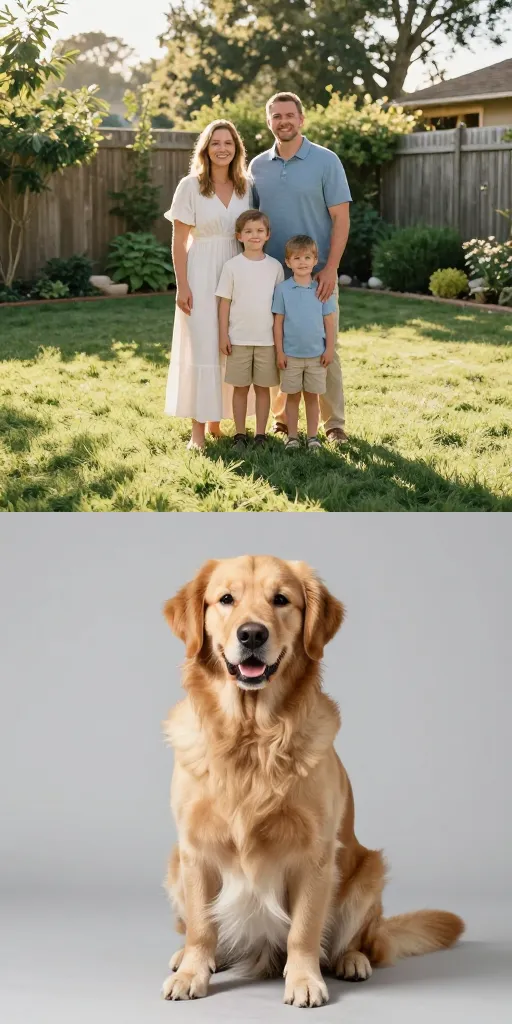
Before - Golden Retriever Added to a Backyard Family Portrait
✨ AI Result
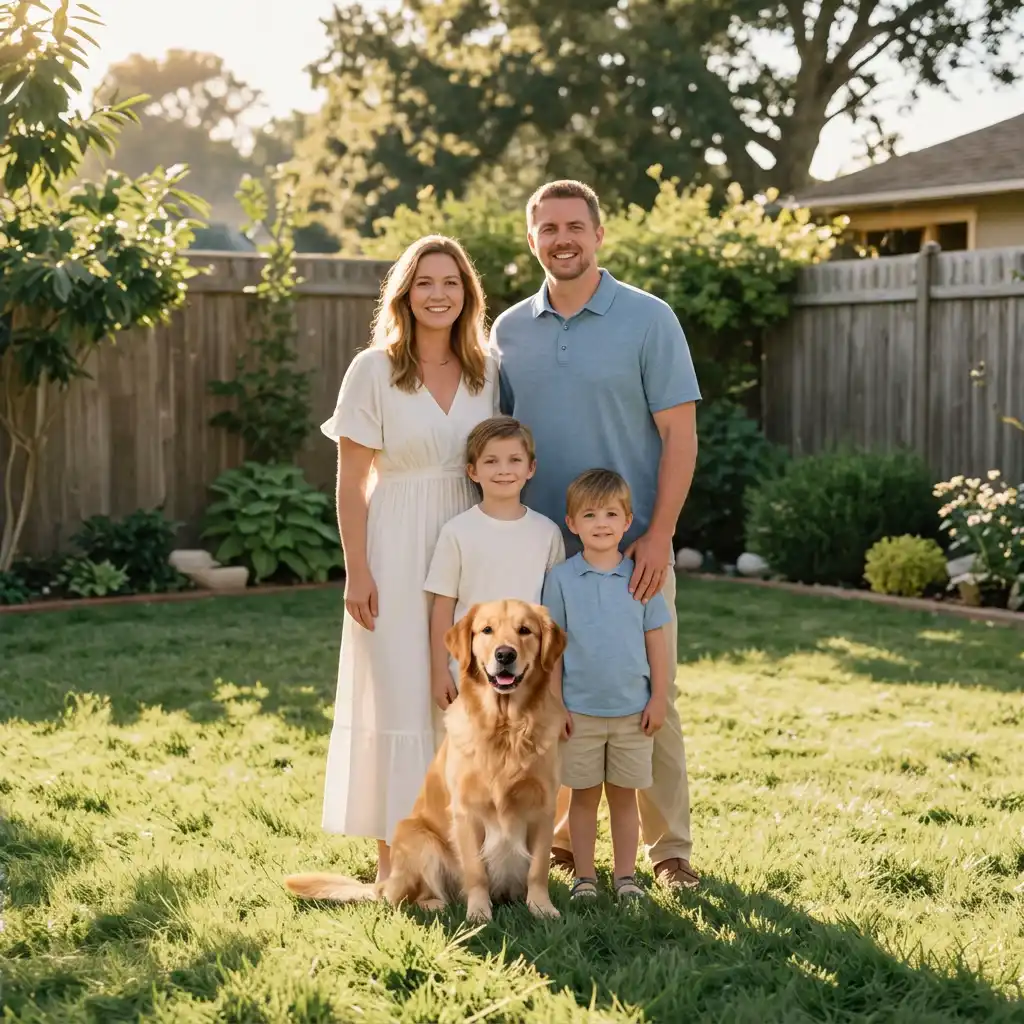
After - Golden Retriever Added to a Backyard Family Portrait

Golden Retriever Added to a Backyard Family Portrait

A backyard portrait of four taken without the family dog, uploaded alongside a studio photo of the golden retriever. The dog was placed sitting in front of the two boys, with the coat and markings carried over from the uploaded photo and a cast shadow following the low evening sun. The people, fence, and lawn are unchanged.

Family PhotoGolden RetrieverBackyard Daylight
Before
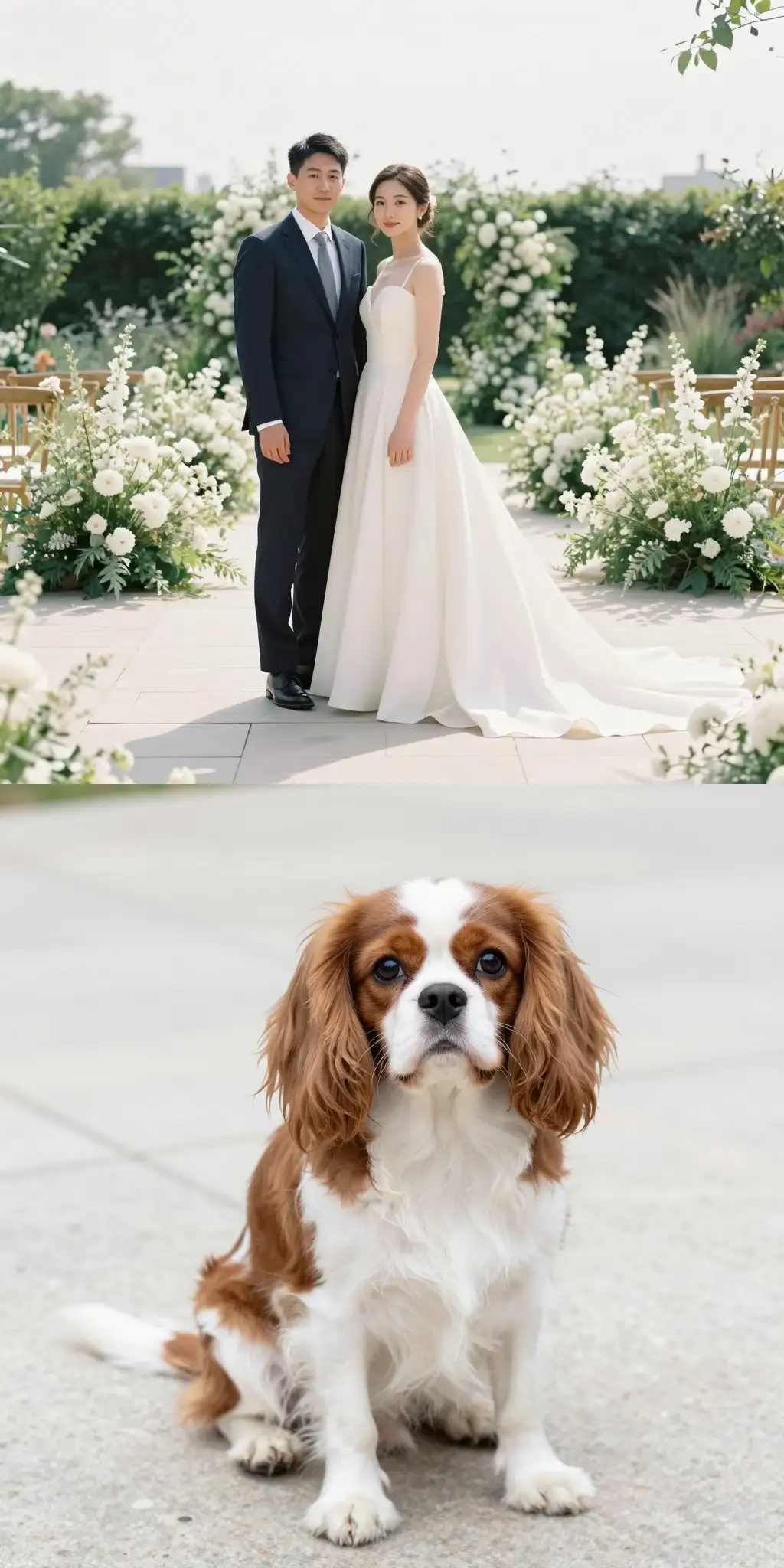
Before - Cavalier Spaniel Added to an Outdoor Garden Wedding Photo
✨ AI Result
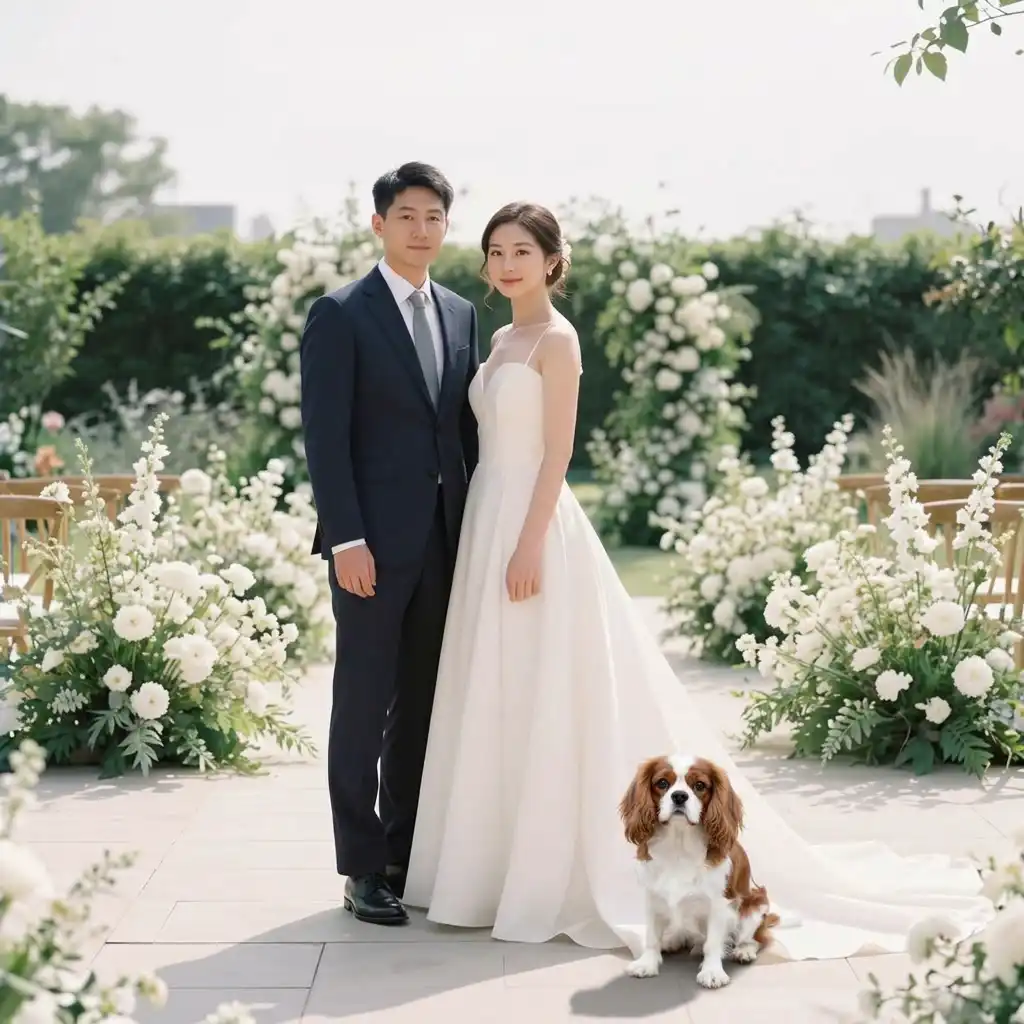
After - Cavalier Spaniel Added to an Outdoor Garden Wedding Photo

Cavalier Spaniel Added to an Outdoor Garden Wedding Photo

A garden ceremony photo the couple's Cavalier King Charles Spaniel could not attend, uploaded with a photo of the dog. It was added beside the bride's train on the stone path, keeping its chestnut-and-white markings and the flat, bright daylight of the venue. The dress, florals, and seating stayed as shot.

Wedding PhotoCavalier SpanielGarden Ceremony
Before
Before - Gray Tabby Cat Added to a Living Room Family Photo
✨ AI Result
After - Gray Tabby Cat Added to a Living Room Family Photo

Gray Tabby Cat Added to a Living Room Family Photo

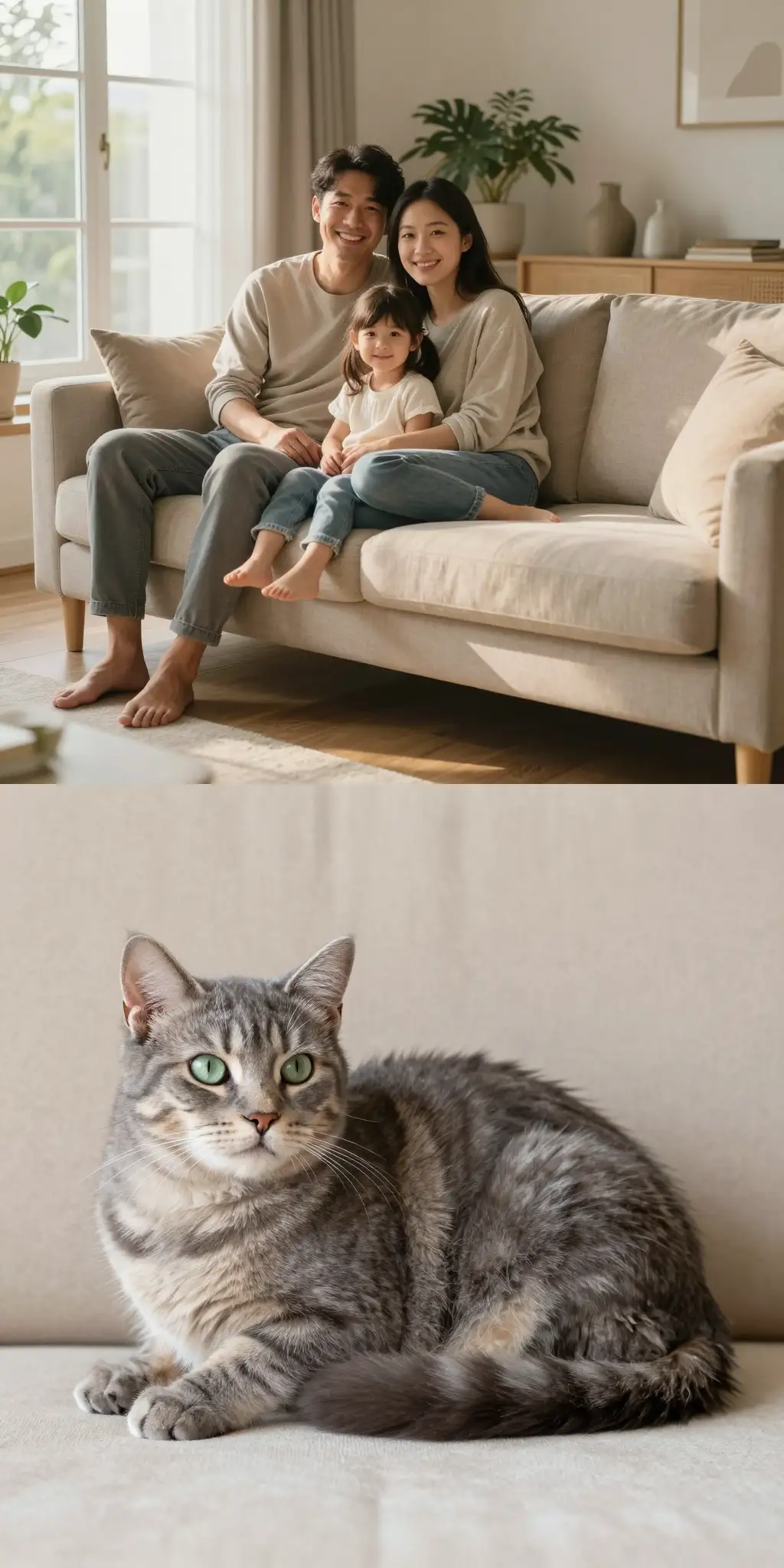
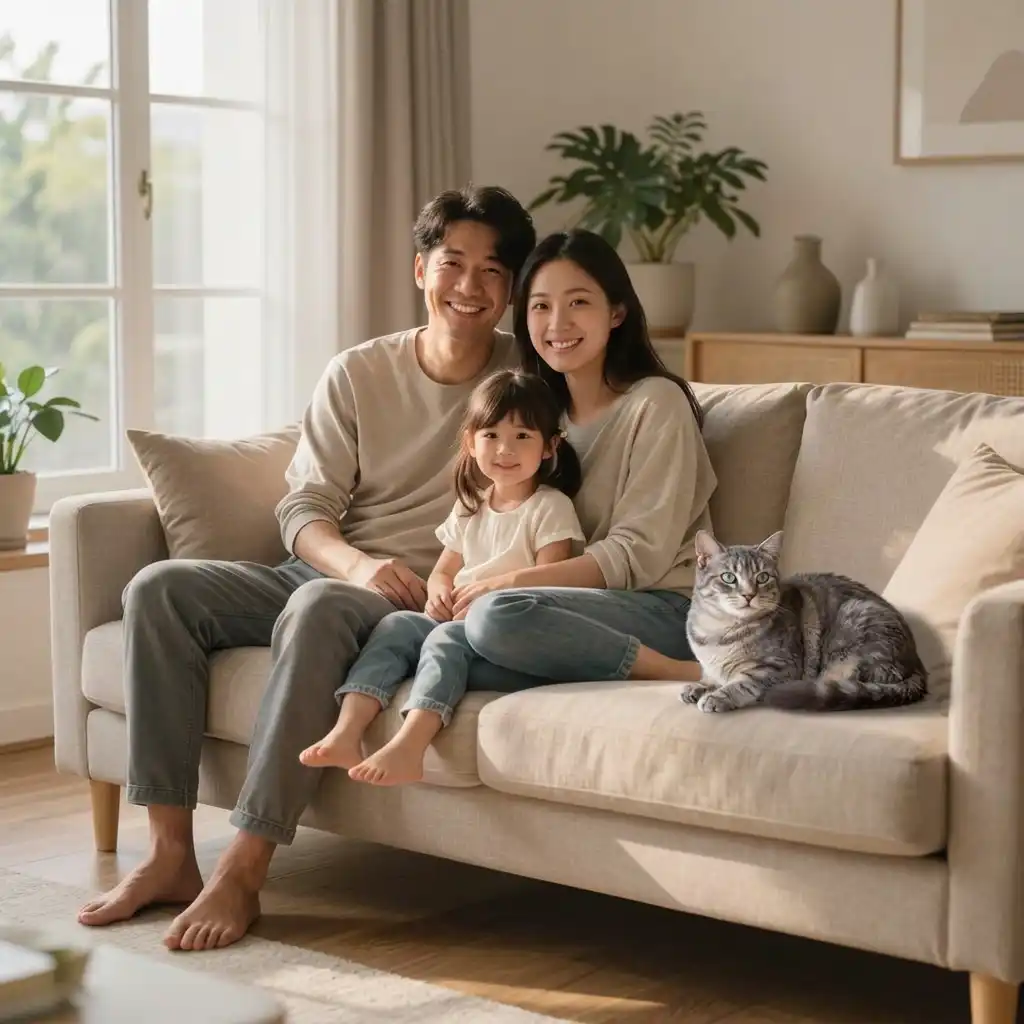
A living room photo of three on a couch, taken while the cat was out of the room, uploaded with a photo of the gray tabby. The cat was added resting on the empty cushion to the right, matching the soft window light falling from the left and keeping the couch, plant, and people unchanged.

Living Room PhotoGray Tabby CatWindow Light

Key Features

Powerful tools designed for professionals

Add Your Own Dog, Cat, or Other Pet

The pet in the result is your pet. The AI works from the photo you upload, so coat color, markings, and build carry over instead of being invented from a description.

Blend Lighting, Shadows, and Perspective

The added pet is rendered to match the direction of the light, the shadow it should cast, and its size relative to the people in the scene photo.

Match Any Photo Style

From full color to black-and-white and grainy vintage prints, the pet is rendered in the same tones and texture as the scene photo.

Natural Poses That Fit the Scene

A sitting dog beside the family, a cat resting on a couch, a pet standing behind the back row — the pose follows the scene instead of looking pasted in.

How Does Vismora Compare?

See why professionals choose our platform

FeatureVismoraManual Photo EditorRetake with the Pet
When it worksExisting photos, including ones taken after a pet has passed awayMost images with enough time and compositing skillOnly when the pet is still around and the moment can be repeated
WorkflowUpload the scene photo and your pet's photos, say where the pet sits, downloadSelections, layer masks, color matching, and retouchingGet the pet, the people, and the light back in one place
Skill neededNone — two photos and one sentence about placementComfort with layers, masks, and tone matchingPatience and a cooperative pet
Best useQuick edits of one or a few photosPixel-perfect control on high-value imagesFuture photos, not the ones you already have

Frequently Asked Questions

Everything you need to know

Can I add a pet to a photo after they have passed away?

Yes, and it is one of the most common reasons people use this tool. Upload the photo your pet should join and a favorite photo of them — the result keeps their coat, markings, and build from that photo. It is a generated tribute image, not a photograph of that actual moment, so review it carefully before printing or sharing.

How do I make the added pet look like my own dog or cat?

Upload a clear, well-lit, full-body photo of your pet — the AI works from that photo rather than from a text description, so coat and markings carry over on their own. Photos taken at an angle similar to the scene blend best. Avoid blurry shots or ones where the pet is partly cut off or covered.

Will the added pet match the photo's lighting and perspective?

The presets ask the AI to match the light direction, shadows, and scale of the scene, and most evenly lit photos blend well. Hard cases include strong side light, reflections on the floor, and spots where the pet would overlap several people — review the contact points at full size and regenerate with a clearer instruction of where the pet should sit.

Can I add a pet to a black-and-white photo?

Yes. Upload the black-and-white photo as the scene and your pet's photo as the second image. The AI renders the added pet in the same grayscale palette and grain instead of pasting in a color animal, which keeps vintage portraits and artistic shots consistent.

Does adding a pet to a photo reduce its quality?

The output keeps the resolution of the scene photo, so start from the original file rather than a screenshot or a compressed messaging download. As with any AI edit, check the fur edges, paws, and shadows at 100% zoom before using the result in print.

What image formats and sizes are supported?

Each image can be a JPG, PNG, or WebP file up to 20MB, and you can upload several photos of your pet so the AI has more angles to work from. Larger, sharper photos give the model more detail to match when blending the pet into the scene.

When to Add a Pet to a Photo

Most photos are missing someone, and often that someone has four legs. A dog that wouldn't sit still, a cat that left the room the moment the camera came out, a puppy that joined the family a month after the portrait was taken — or a pet that was there for years and is no longer here. Vismora is useful when the moment has passed and cannot be restaged: upload the photo and a picture of your pet, and the AI blends your pet into the scene from the photo you provide. If the problem is glare on a pet's photo rather than a missing pet, that is a job for the reflection remover; a harsh shadow across the shot, for the shadow remover.

Add a Dog or Puppy to a Family Photo

The classic case: everyone is home, the light is good, the frame is full of smiling faces — and the dog is missing because it was at the sitter's, wouldn't settle, or simply wasn't part of the family yet when the photo was taken. Upload the family shot and a photo of your dog, then say where it should sit and next to whom. The people, the background, and the light stay untouched; only the missing member is added, with its own coat and markings.

Add Your Dog to a Wedding Photo

Venues and photographers rarely make room for dogs on the day, so the couple's dog is often absent from the pictures that matter most. A dog that couldn't attend — or one that was there in spirit years later — can be added to the formal shot from a photo of it. Formal photos usually blend well because the lighting is even and the composition is deliberate; saying where the dog should stand relative to the dress and suits keeps the frame balanced.

Add a Cat to a Family Photo

Cats do not cooperate with schedules. A cat that appears in every family memory but vanished before the camera came out can be added after the fact, usually resting on a couch arm, a lap, or the floor in front of the group. Because cats sit lower and smaller than dogs, naming the exact resting spot in your instruction helps the AI keep the scale believable.

Add a Pet to a Group Photo

Group photos add a second challenge: many people, overlapping bodies, and no obvious empty spot. The pet needs the right scale for its position — standing behind the back row is different from sitting in front — and must not cover faces or hands. Pick a spot with visible floor or background where a shadow can land naturally, and describe the position precisely in your instruction.

Add a Pet to a Black-and-White Portrait

Older family portraits and artistic shots are often monochrome, and a color animal dropped into them would stand out immediately. The AI can render your pet in the same grayscale tones, contrast, and grain as the original, which matters when the photo hangs next to other vintage prints or when the pet is being added to a portrait taken decades before it was born.

Tips for a Natural-Looking Result

Match Lighting, Shadows, and Perspective

The single biggest tell in a pet composite is the light. A pet lit from the left in a photo where every shadow falls to the right will never look right, no matter how good the fur looks. The AI matches the light from your scene photo, but you control two things: pick a pet photo taken in light that resembles the scene, and check three points in the result — the shadow under the pet, the pet's size relative to the nearest person, and the perspective of the floor or ground it stands on.

  • Use a clear, well-lit, full-body photo of your pet — the AI works from that photo, so coat and markings carry over on their own.
  • Name the exact spot: "sitting on the grass in front of the woman in the blue dress" beats "in the photo somewhere".
  • Match angles when you can: a pet photo taken at a similar angle to the scene blends more naturally.
  • Start from the original, highest-resolution files rather than screenshots or compressed downloads.
  • Review the fur edges, paws, and contact shadow at 100% zoom before downloading.
  • If the blend misses, refine the placement instruction and regenerate — a clearer instruction usually beats a longer one.

What the Tool Cannot Guarantee

The pet's appearance comes from your photo, so coat, markings, and build carry over — but the pose and viewing angle may shift to fit the scene, and no composite is pixel-exact. Scenes with strong directional light, reflective floors, or a pet position that overlaps several people are harder to blend cleanly. For memorial photos, treat the result as a tribute image built from your own photo of your pet — not as a photograph of the last moments of your pet — and review it at full size before printing or sharing.

More Image Editor Tools

Explore the rest of the Image Editor toolkit

Browse all Image Editor toolsSee every AI tool in the Image Editor collection

Ready to Transform Your Images?

Try Vismora's AI-powered tools now. Free to start.