
Unblur a Face in Photo — Rebuild Natural Facial Detail

Unblur face in photo with Vismora: upload a blurry portrait and the AI rebuilds sharper eyes, hair, and skin detail so the face looks clear again. Keep the subject, pose, and framing close to the original, then compare the result and download the version you want to use.

Part of Vismora's Enhance & Upscale toolkit.

Try Unblur Face Now

Upload your photo and see the AI in action — free to try

Upload Image

Click to upload or drag & drop

JPG, PNG, WebP up to 20MB

Processing Mode

Sign in to get 12 free credits

Result

Your result will appear here

Want more advanced features? Try our full editor →

How It Works

Get professional results in three simple steps

1

Upload Your Blurry Face Photo

Choose a JPG, PNG, or WebP image up to 20MB. Use the sharpest original you have rather than a screenshot or a compressed copy so the AI has more facial detail to work with.

2

AI Unblurs the Face

The model sharpens eyes, eyebrows, nose, mouth, hair, and skin texture while keeping the person's expression and the original composition. Pick Natural Detail for mild blur, Strong Recovery for a softer focus, or Group Photo for several faces.

3

Compare and Download

Check the clearer face against the original at full size. If you want a different balance of sharpness and natural texture, rerun with another preset, then download the result.

See It in Action

Real examples showing the transformation power of our AI

Before
Before - Blurry Garden Portrait Unblurred to Clearer Facial Detail
✨ AI Result
After - Blurry Garden Portrait Unblurred to Clearer Facial Detail

Blurry Garden Portrait Unblurred to Clearer Facial Detail

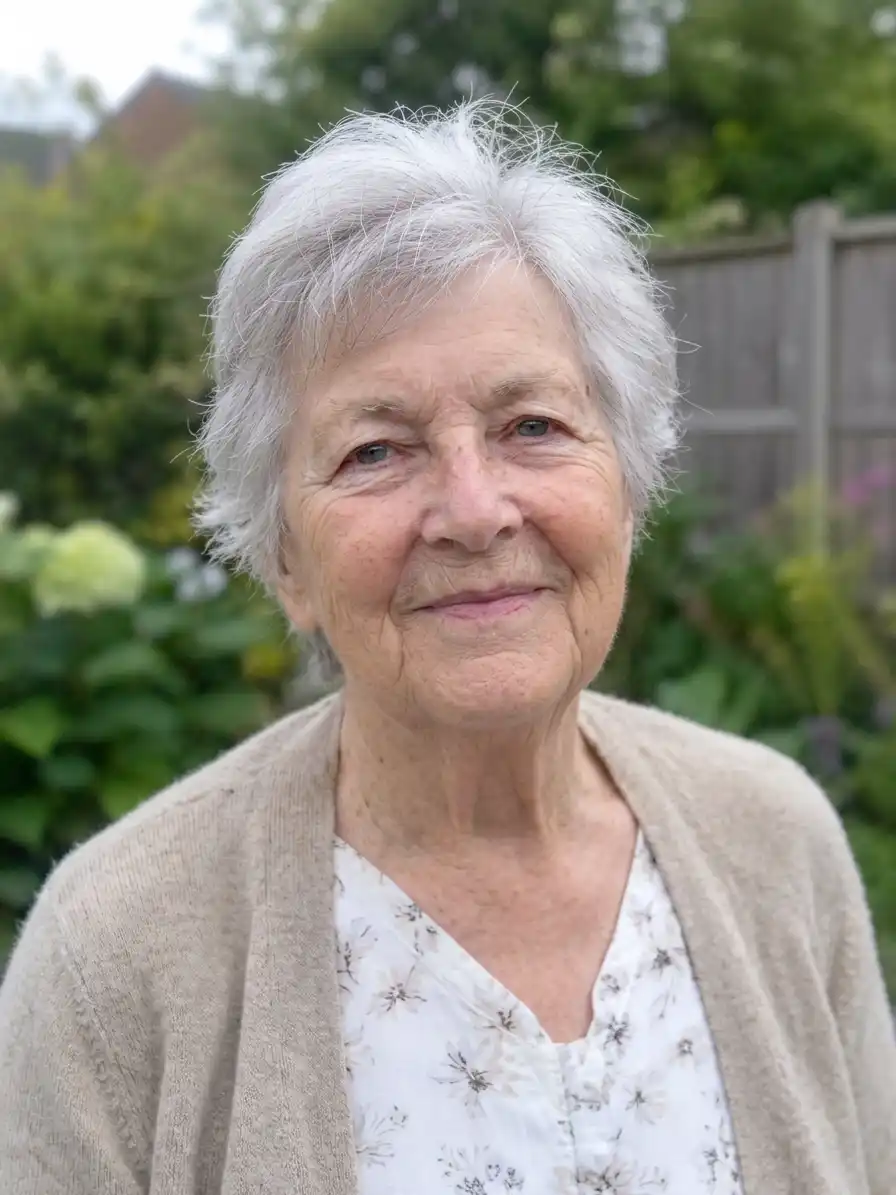
This unblur face in photo example starts with a soft garden portrait where the woman's eyes, hair, and skin texture are hard to read. In the clearer result, the eyes, silver hair, cardigan knit, and floral top show more definition, while the garden, fence, pose, and framing stay recognizable. Facial features can shift during reconstruction, so compare the result with the original before using it.

Garden PortraitSoft FocusSilver Hair
Before
Before - Soft Autumn Park Portrait of a Man in Glasses, Sharpened
✨ AI Result
After - Soft Autumn Park Portrait of a Man in Glasses, Sharpened

Soft Autumn Park Portrait of a Man in Glasses, Sharpened

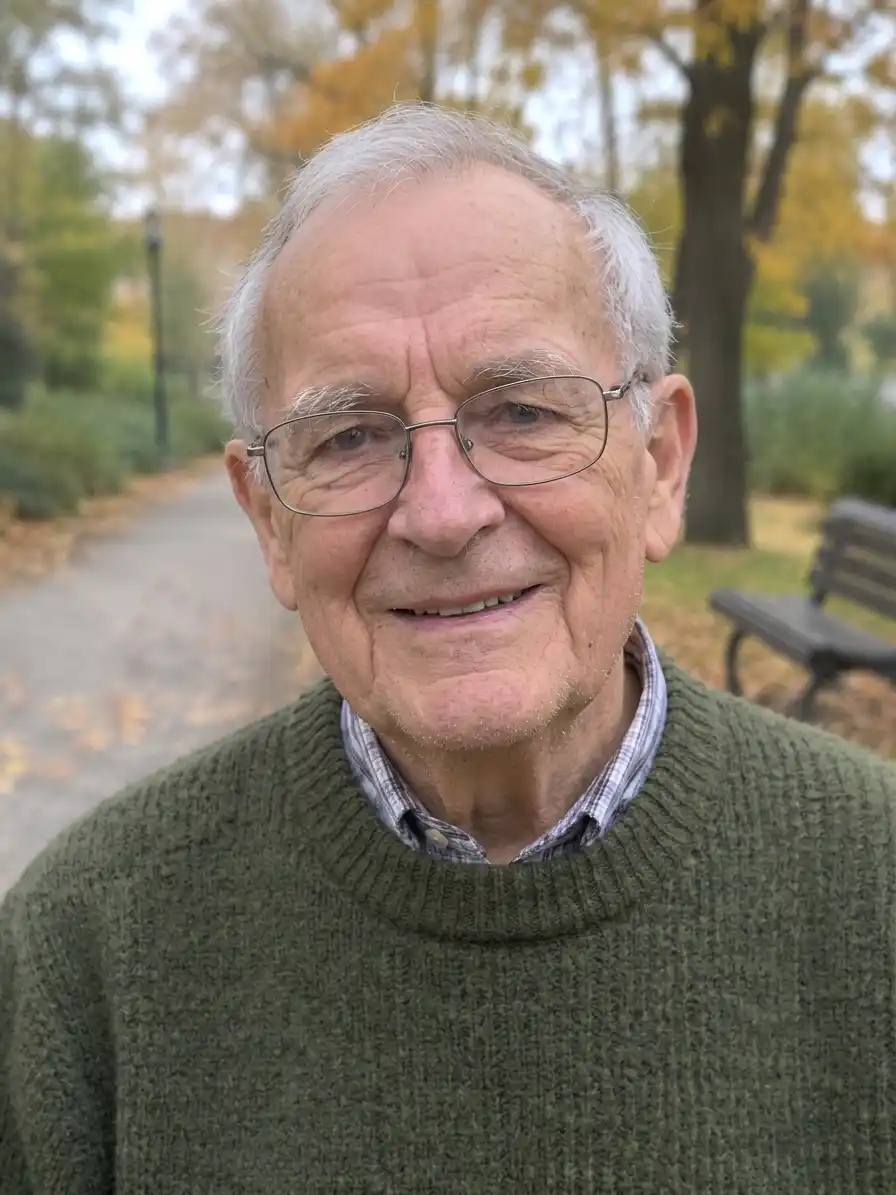
A soft autumn park portrait of an older man in wire-rim glasses and a green sweater. The sharper version shows more definition around the eyes, eyebrows, glasses frames, stubble, and knit texture, while the path, trees, and bench remain in place. Check the glasses and facial features against the original because small details can change.

Autumn PortraitGlassesOutdoor Photo
Before
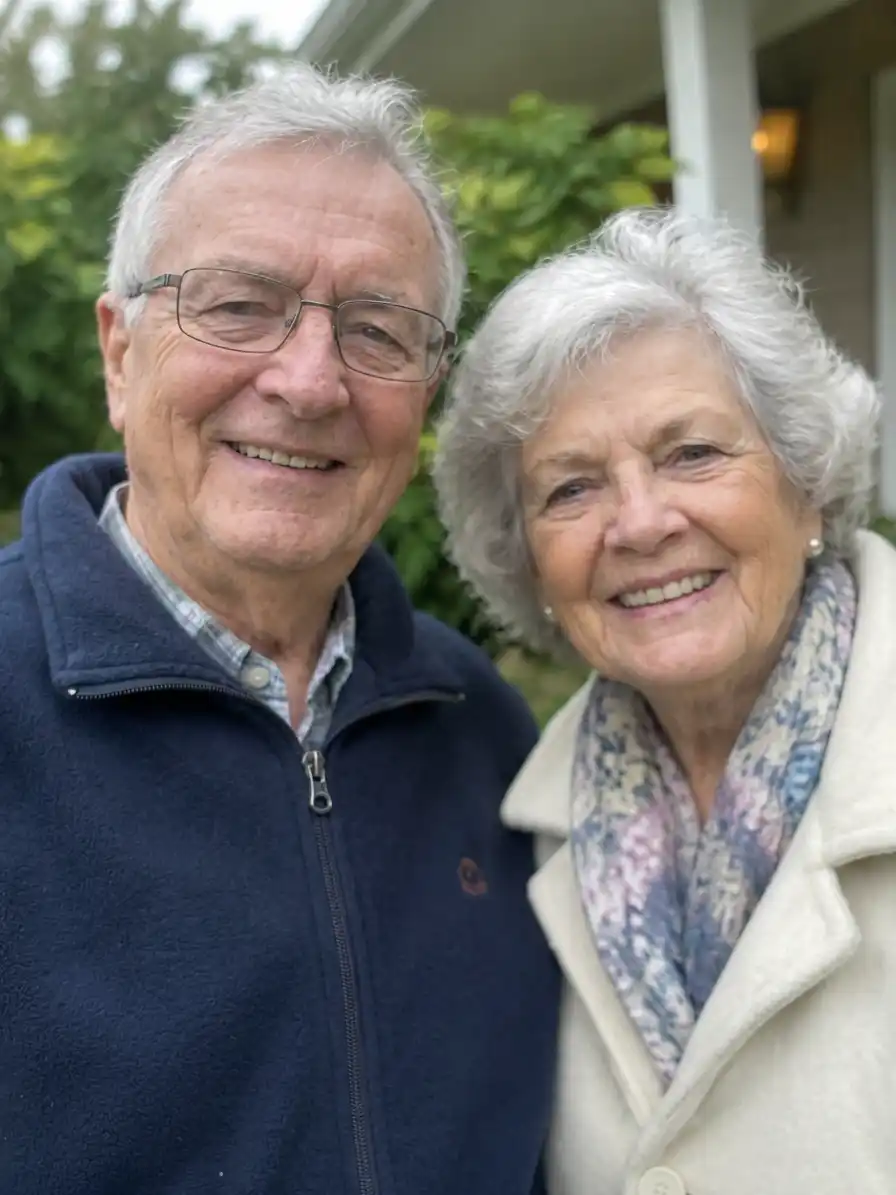
Before - Blurry Couple Photo Unblurred in Front of a House
✨ AI Result
After - Blurry Couple Photo Unblurred in Front of a House

Blurry Couple Photo Unblurred in Front of a House

This couple photo in front of a house has soft faces and muted clothing detail in the input. After unblurring, both faces, the man's glasses, the woman's scarf pattern, and the coat buttons show more definition, while the porch, shrubs, and framing stay recognizable. Review each face separately before using the group image.

Couple PhotoGroup FacesHome Portrait

Key Features

Powerful tools designed for professionals

Sharpen Eyes, Hair, and Skin Detail

Rebuild the small facial details that blur hides, from eyelashes and eyebrows to hair strands and skin texture, so the portrait reads clearly.

Fix Blurry Selfies and Portraits

Useful for phone photos, event shots, and portraits that are slightly out of focus but still recognizable.

Unblur Faces in Group Photos

Upload one group photo and ask the model to improve the faces in the frame. Front-row faces with more pixels usually improve more than small background faces.

Keep the Person Looking Like Themselves

The presets ask the model to preserve identity, expression, skin tone, and pose so the result stays close to the same portrait.

Frequently Asked Questions

Everything you need to know

How do I unblur a face in a photo?

Upload the photo to Vismora, choose a preset, and let the AI rebuild the facial detail. Start with Natural Detail for mild blur or Strong Recovery for a face that is clearly out of focus, then compare the result with the original before downloading.

Can I unblur a face in an old or low-quality photo?

Often, yes. A soft or slightly out-of-focus face in an old photo or a compressed phone image can look clearer after processing. Torn, faded, or heavily damaged prints need restoration first, and a face with no visible detail left has less to work from.

Can I unblur several faces in a group photo?

Yes. Upload one group photo and choose the Group Photo preset to ask for balanced improvement across the faces in the frame. Front-row faces with enough pixels usually improve more than small background faces, so check each person separately.

Will the unblurred face still look like the same person?

The presets ask the model to preserve identity, expression, skin tone, and pose. Compare the eyes, nose, mouth, jawline, hairline, and any distinguishing marks with the original before using the image; if the face drifts, rerun from the original with a lighter preset.

Can I unblur a face without Photoshop?

Yes. You do not need editing software or manual masking. Upload the photo, choose a preset, and review the generated result in the browser. This is useful when you only need to fix one soft face rather than retouch the whole image.

Does unblurring a face also increase the image resolution?

The tool focuses on visible face clarity rather than changing the image dimensions. This demo uses a 1K output setting, so use a separate upscaler if you also need a larger file for print.

How many credits does one face unblur use?

The tool requires sign-in and uses account credits. Each generation costs 10 credits; check your account for available trial credits. Downloading the generated result does not use a separate download credit.

Unblur Face in Photo: Common Use Cases

Blurry Selfies and Phone Photos

Phone cameras often soften a face in low light or when the subject moves. If the eyes and mouth are still visible, unblurring can make a selfie look sharp enough to post, send, or use as a profile photo.

Out-of-Focus Portraits from Events

Wedding, party, and travel photos often catch one person slightly out of focus. A face-specific unblur pass can bring that person closer to the visual quality of the rest of the frame.

Old Family Photos and Scanned Prints

A soft or slightly out-of-focus face in an old photo can become easier to see. Torn, faded, or heavily damaged prints need restoration first; unblurring works on the facial detail that is still present in the scan.

Group Photos with One Soft Face

In group shots, the person who moved or stood at the edge of the focus plane is often the only blurry face. Upload the group photo, ask for balanced improvement across the faces, then check each person at full size.

How to Get the Clearest Unblur Result

Start From the Sharpest Original

Use the original file, not a screenshot or a messaging-app copy. Compression removes the small details the AI needs to rebuild a clear face.

Match the Preset to the Blur

Choose Natural Detail for mild softness, Strong Recovery for a face that is clearly out of focus, and Group Photo when several people need work. If the first pass looks over-sharpened, rerun with a lighter preset.

Compare at Full Size

Check the eyes, nose, mouth, jawline, hairline, and skin texture against the original. A face can look clear at thumbnail size and still feel wrong when viewed at full size.

Avoid Stacking Edits

Each pass can change the face a little more. Return to the original and change the preset instead of editing the edited file.

Tips for Natural-Looking Results

  • Use a photo where the face is large enough to see the eyes and mouth.
  • Keep the original file until you are happy with the result.
  • Prefer the lighter preset when two results look similarly sharp.
  • Only edit photos you have the right to use; unblurring can make an identifiable face clearer.

For a portrait that looks plastic after editing, the AI Image Humanizer can restore a more photographic finish. If a hard shadow or glasses glare is hiding the face, use the photo shadow remover or the photo reflection remover. If the source is too degraded to recover, the AI dating profile photo generator can create a new portrait instead.

More Enhance & Upscale Tools

Explore the rest of the Enhance & Upscale toolkit

Browse all Enhance & Upscale toolsSee every AI tool in the Enhance & Upscale collection

You Might Also Like

Related AI tools from other Vismora collections

Ready to Transform Your Images?

Try Vismora's AI-powered tools now. Free to start.