When to Use an AI Image Humanizer
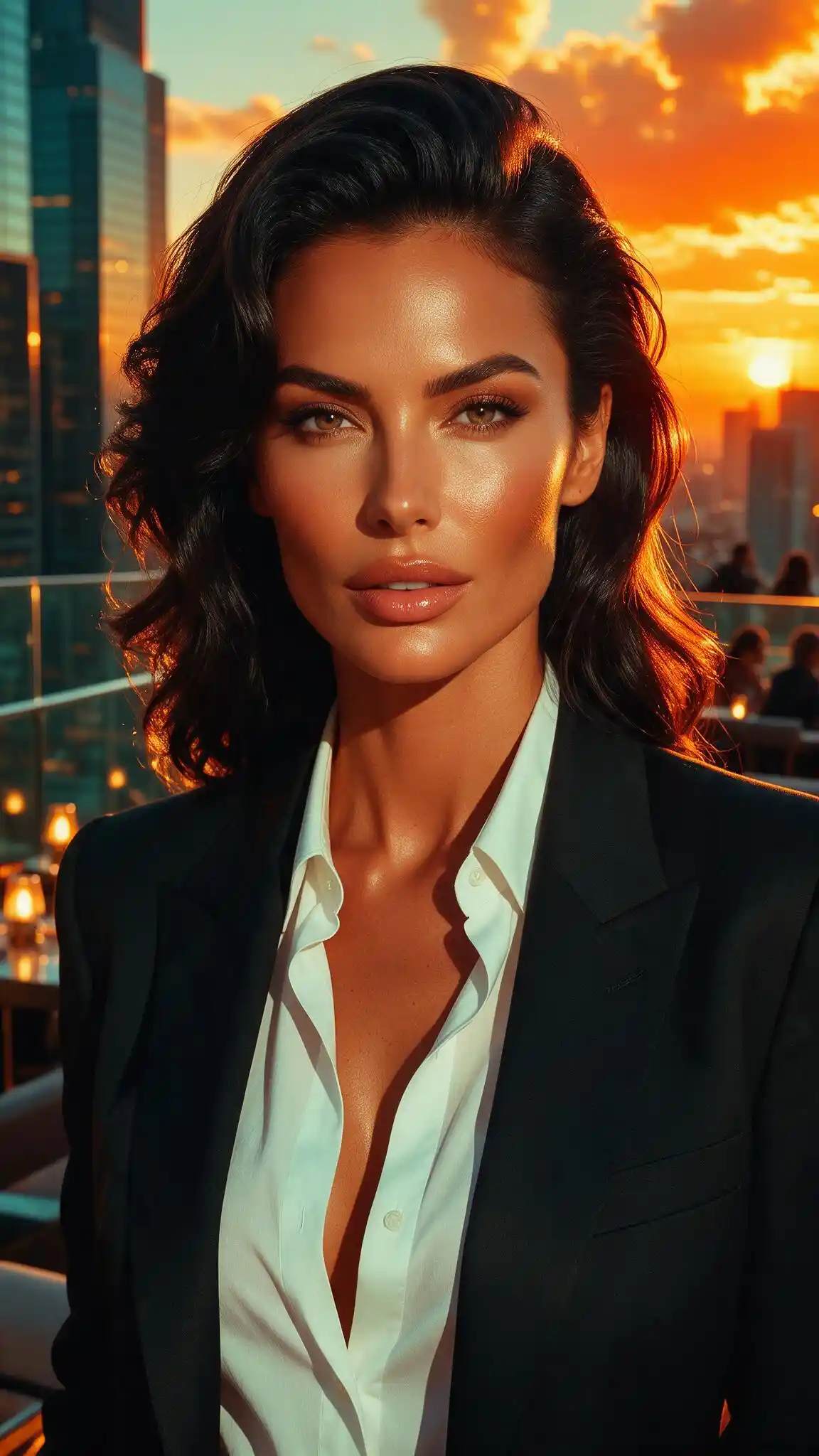
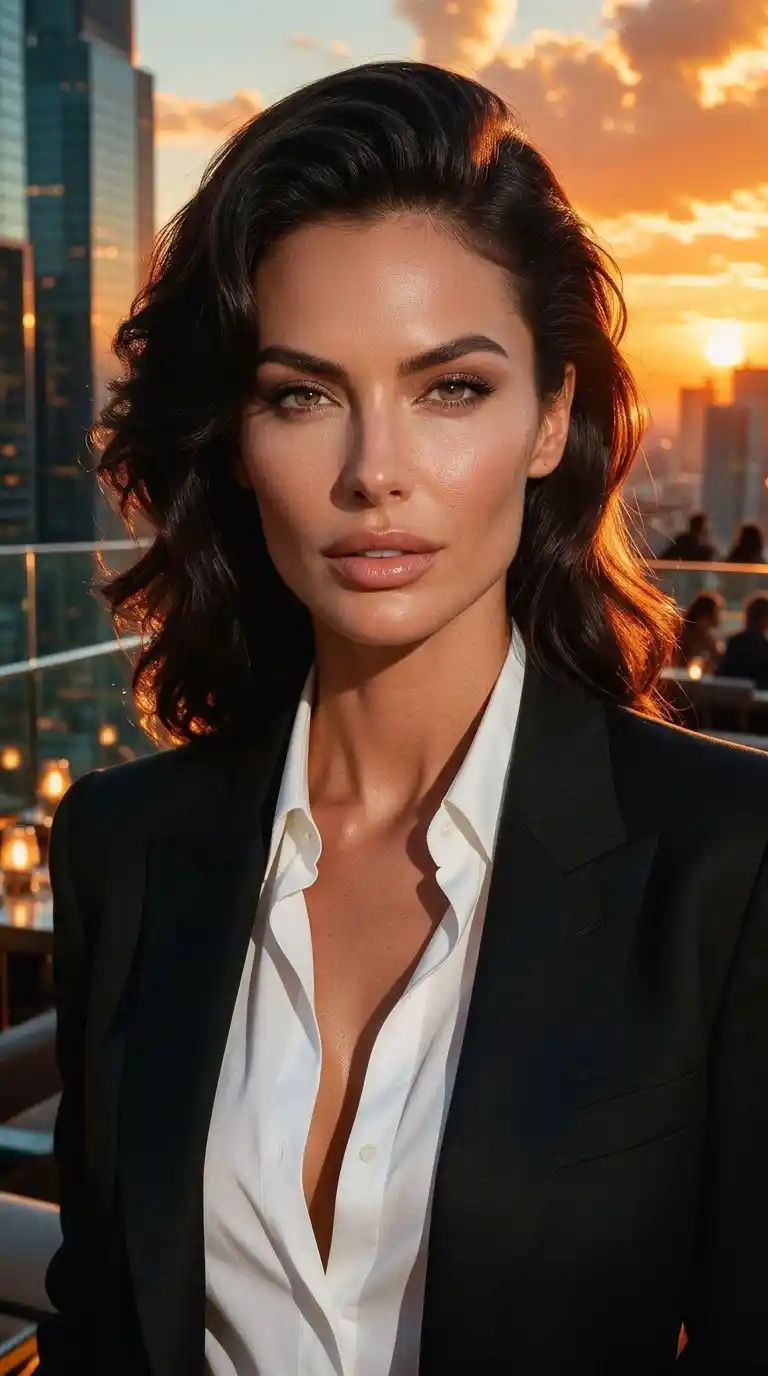
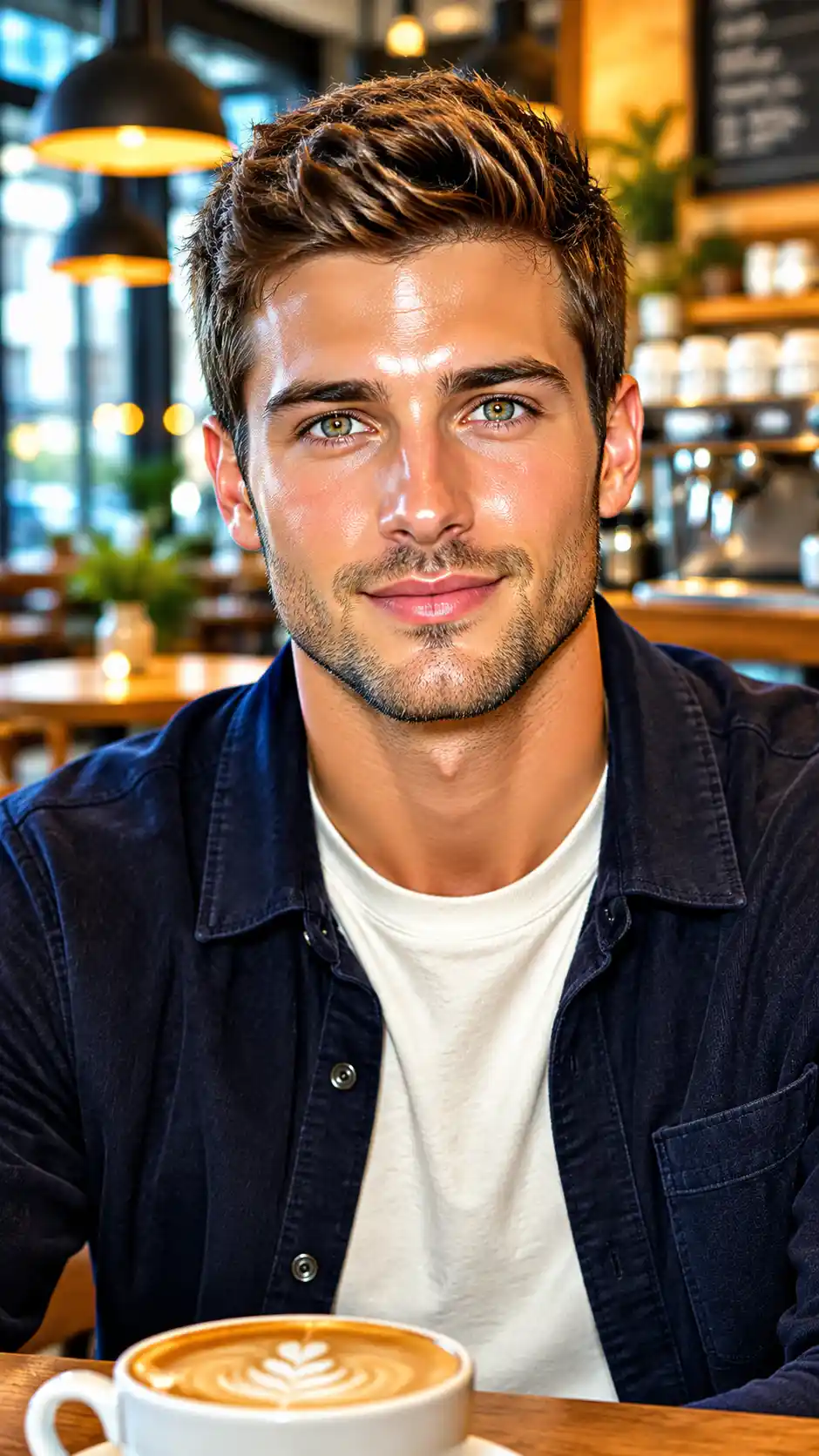
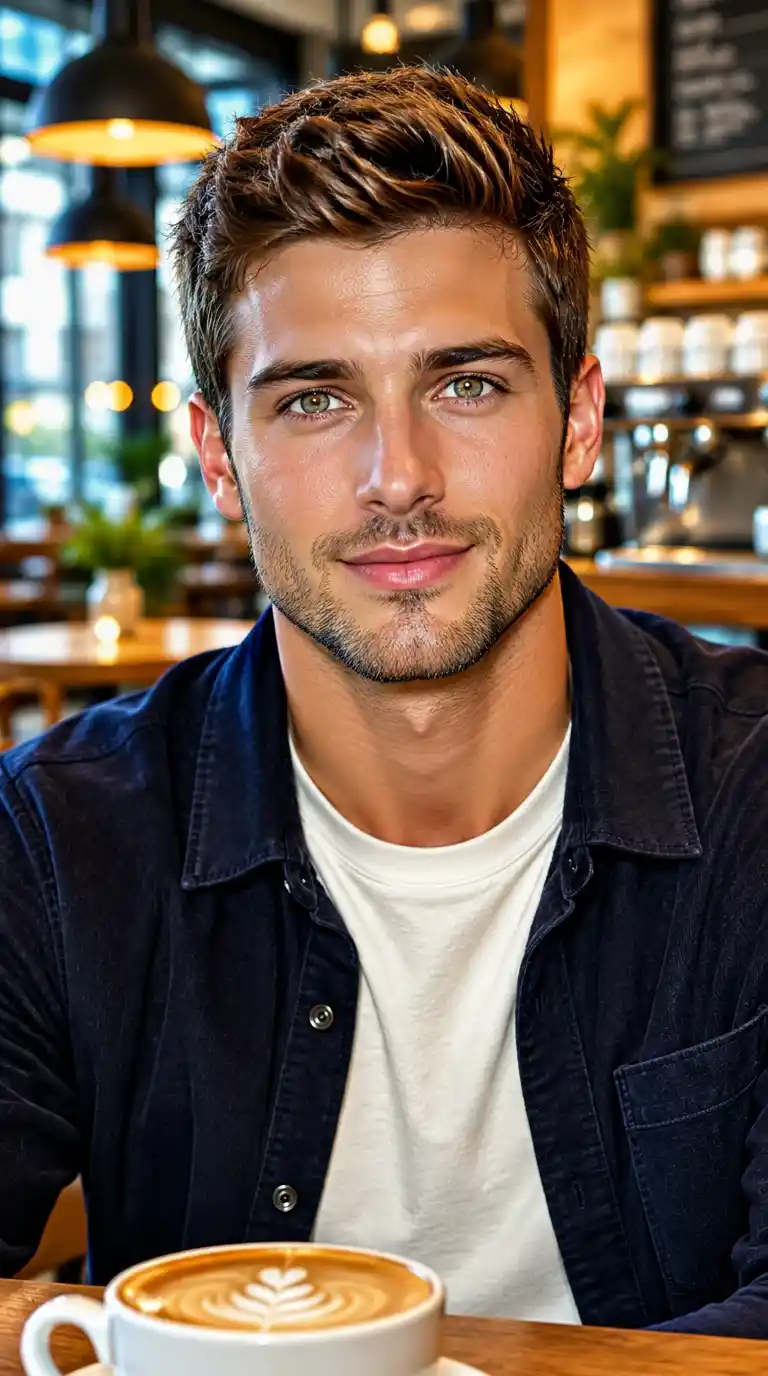
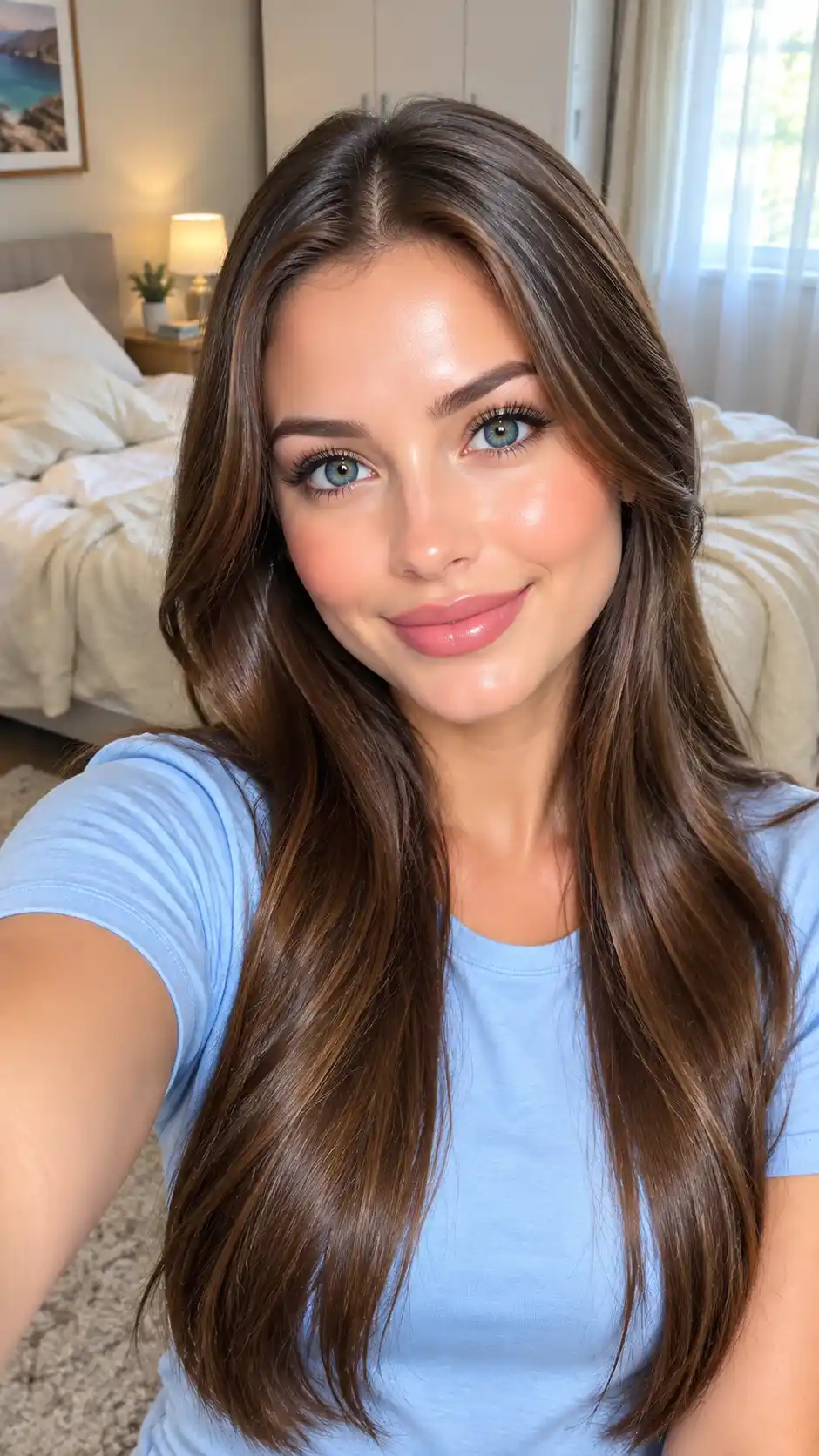
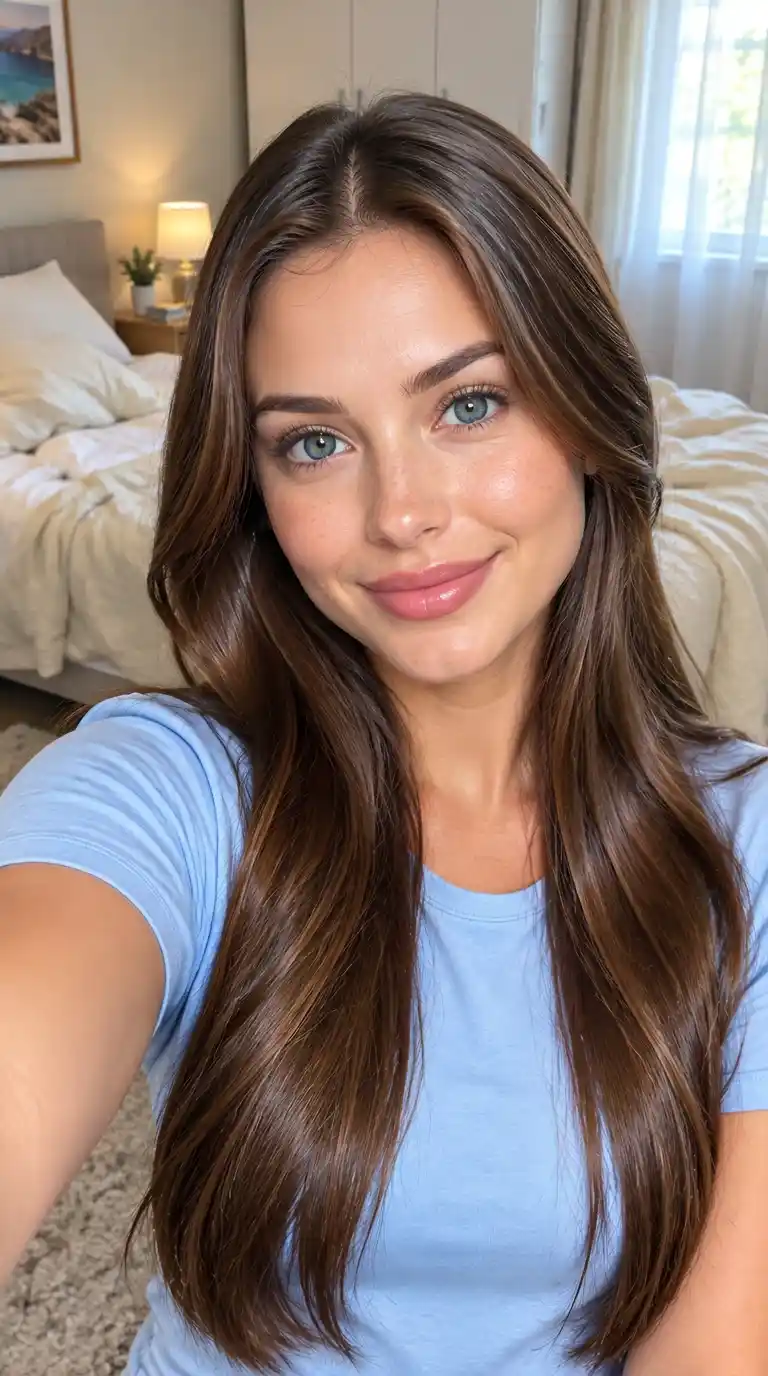
An AI-generated image can have the right composition but still look overly polished. Skin may appear airbrushed, fabric may lack texture, or reflections may not match the light. Vismora offers focused editing presets for these visible issues without asking you to start with a new scene.
AI Portraits with Waxy or Airbrushed Skin
Choose Portrait Texture when smooth skin is the main distraction. Look for restrained variation rather than adding strong pores everywhere. Review the face at full size and at its intended display size to check whether the edit suits the portrait.
Scenes with Artificial-Looking Lighting and Materials
Choose Lighting & Materials when the problem is in the surrounding scene: glossy fabric, flat surfaces, or inconsistent shadows. Compare object shapes, labels, and important design details with the original before using an edited image commercially.
Images That Need a Subtle Photographic Finish
Start with Subtle Realism when the composition already works. You can narrow the prompt to one visible problem, such as overly smooth skin or harsh surface shine, rather than requesting a complete transformation.
Tips for More Natural-Looking Results
- Use the original export instead of a screenshot or compressed download.
- Match the preset to the visible issue, then adjust only what still needs work.
- Compare eyes, mouth, jawline, hairline, and distinguishing marks with the source.
- Check texture, shadow direction, hands, lettering, and product edges at full size.
- Keep the original: repeated generative edits can introduce new changes instead of improving the image.
What the Tool Cannot Guarantee
Humanizing changes an image's visible appearance, not its origin. Added texture is generated detail, not recovered real-world information. Facial identity, text, and geometry can change, so review the result before publishing. Do not use an edited image where an unaltered photograph is required, and obtain appropriate permission when editing images of real people.
For a specific harsh shadow, use the photo shadow remover. For glare on glass, use the photo reflection remover. If you want a different outfit or setting rather than a subtle edit, explore the AI dating profile photo generator.