


Remove Shadow from Photo Online

Vismora is an AI shadow remover for photos where a stray dark patch spoils an otherwise good shot. Upload a portrait, a document photo, or a product image and reduce harsh face shadows, phone shadows on paper, or unwanted cast shadows while natural lighting and surface texture stay intact.

Part of Vismora's Image Editor toolkit.

Try AI Shadow Remover Now

Upload your photo and see the AI in action — free to try

Upload Image

Click to upload or drag & drop

JPG, PNG, WebP up to 10MB

Processing Mode

Sign in to get 12 free credits

Result

Your result will appear here

Want more advanced features? Try our full editor →

How It Works

Get professional results in three simple steps

1

Upload a Photo with a Shadow

Choose a JPG, PNG, or WebP image up to 10MB. A clear, well-exposed original gives the AI more shadow edge and texture detail to work with.

2

Let AI Remove the Shadow

Choose a removal preset and run the tool. Vismora lifts the unwanted shadow while keeping the subject, the natural lighting direction, and surface texture believable.

3

Review and Download the Result

Check the edited image at full size — especially shadow edges, faces, and printed text — then download it for profiles, listings, documents, or personal archives.

See It in Action

Real examples showing the transformation power of our AI

Before
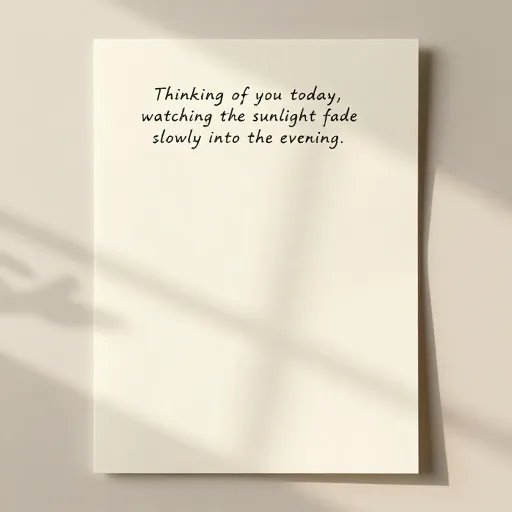
Before - Phone Shadow Removed from a Handwritten Note
✨ AI Result
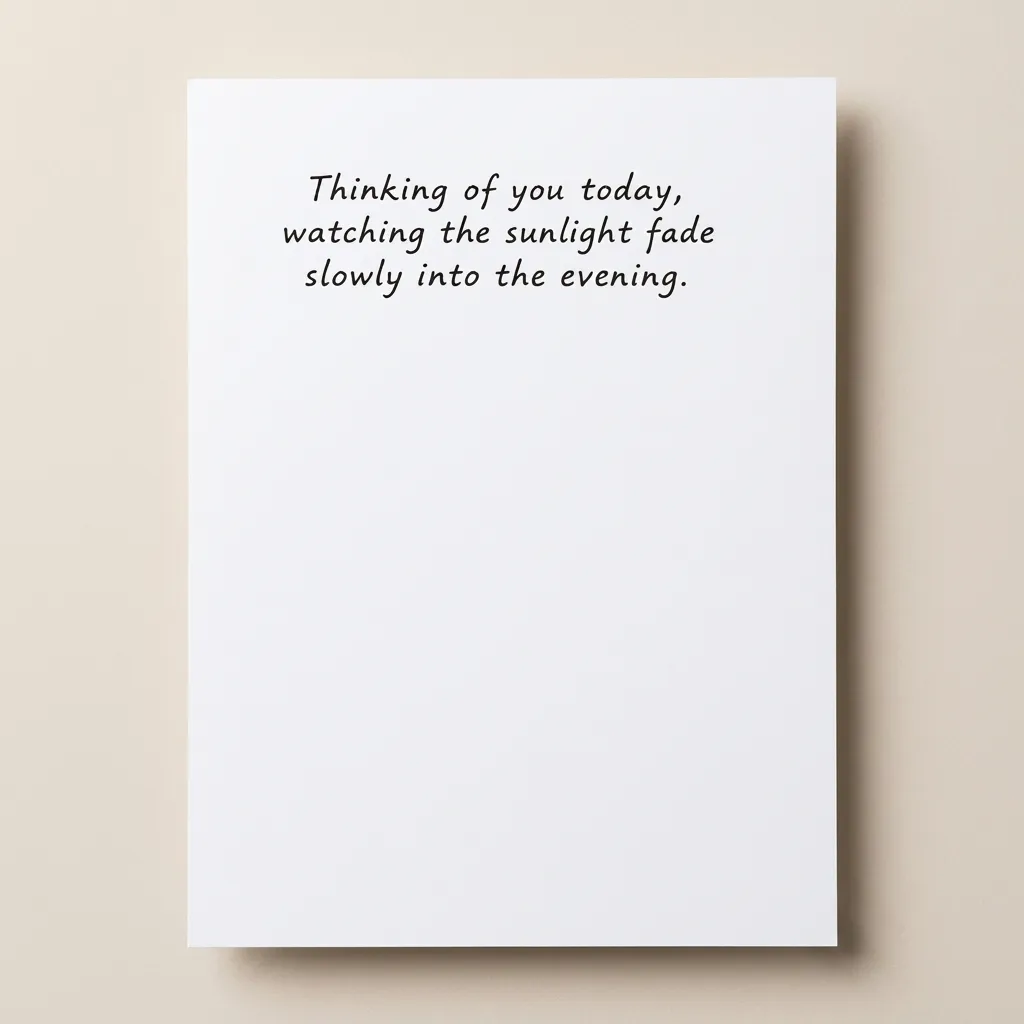
After - Phone Shadow Removed from a Handwritten Note

Phone Shadow Removed from a Handwritten Note

A handwritten note photographed with a strong window shadow across the page. The shadow was lifted while the paper tone and every line of lettering remained readable.

Document PhotoWindow ShadowText Preservation
Before
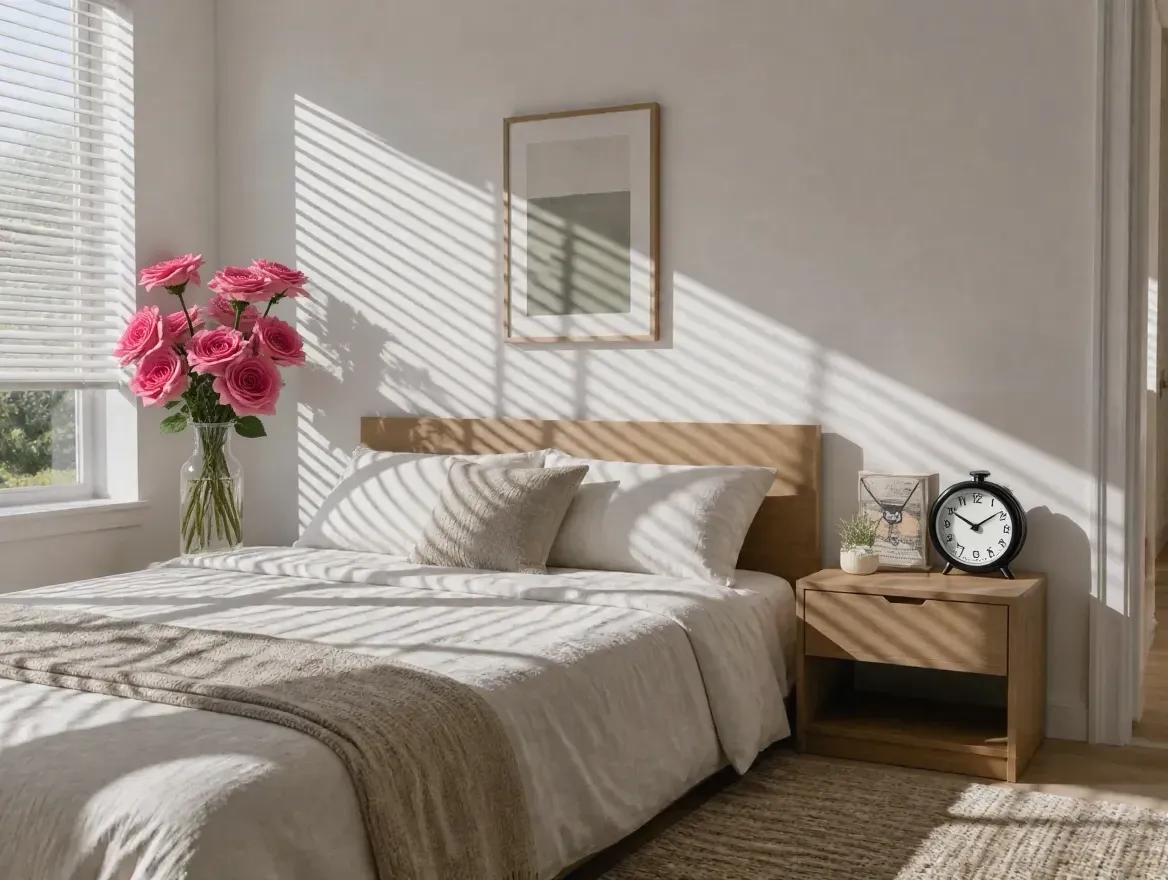
Before - Harsh Window-Blind Shadows Removed from a Bedroom
✨ AI Result
After - Harsh Window-Blind Shadows Removed from a Bedroom

Harsh Window-Blind Shadows Removed from a Bedroom

A bedroom covered by hard horizontal sunlight and blind shadows. The distracting bands were reduced while the bed, roses, wall art, and natural grounding shadows stayed intact.

Room PhotoSunlight ShadowsInterior Editing
Before
Before - Dappled Face Shadows Removed from a Forest Portrait
✨ AI Result
After - Dappled Face Shadows Removed from a Forest Portrait

Dappled Face Shadows Removed from a Forest Portrait

A forest portrait with patchy leaf shadows crossing the face and shirt. The uneven patches were softened while facial contours, skin tone, and the woodland background remained natural.

Portrait RetouchingFace ShadowsOutdoor Photo

Key Features

Powerful tools designed for professionals

Fix Harsh Face Shadows

Soften shadows from direct sun, hat brims, or overhead light across the face while keeping natural skin tone and facial contours.

Clean Phone Shadows on Documents

Remove the dark shape of a phone or hand from photos of paper, receipts, notes, and book pages without washing out printed text.

Tidy Product and Flat Lay Shadows

Reduce distracting cast shadows, window grid lines, and hard light bands in product and tabletop photos while keeping a natural grounding shadow.

Rescue Photos with Your Own Shadow

Lift the photographer's silhouette out of outdoor shots of plants, pets, and wildlife when stepping back or reshooting is not an option.

How Does Vismora Compare?

See why professionals choose our platform

FeatureVismoraManual Photo EditorRetake the Photo
When it worksExisting photos with distracting cast shadowsMost images with masking and retouching skillOnly when the scene and light can be recreated
WorkflowUpload, choose a preset, downloadMasks, exposure brushes, clone and healing toolsSofter light, reflectors, or a new angle
Skill neededNone — pick the preset that matches the photoComfort with selections, masks, and tonal toolsUnderstanding of light direction and diffusion
Best useQuick cleanup of one or a few photosPrecise control on complex or high-value imagesPreventing shadows before pressing the shutter

Frequently Asked Questions

Everything you need to know

Can I remove a shadow from a photo after taking it?

Yes. Upload the existing photo to Vismora and choose a shadow-removal preset. The tool is designed for common cast shadows — on faces, paper, products, and floors — that were impossible to avoid during shooting. Results depend on how much original detail survives inside the darkest part of the shadow.

Will removing shadows make my photo look flat or fake?

Not if the edit is done with restraint. A photo with every shadow erased looks unnatural because shadows give objects depth and ground them in the scene. Vismora's presets target the distracting cast shadow while keeping natural shading, contact shadows, and the original lighting direction, so the result still looks like a real photograph.

Can it remove a phone shadow from a document photo?

Yes — this is one of the most common uses. Photographing paper, receipts, notes, or book pages with a phone often blocks the light and leaves a dark shape across the text. Use the Document & Paper preset, then check the result at full size to confirm every line of text is still crisp and readable.

Can I use a shadow-removed photo for a passport or ID?

Be careful here. Identity photos must be evenly lit with no shadows on the face, but many issuing authorities — including the U.S. Department of State — prohibit digital alterations of ID photographs. Fixing the lighting at capture is the safe route; confirm your agency's policy on digital corrections before submitting any edited photo.

What shadows are hardest to remove?

Shadows so deep that the area underneath is pure black contain no visible detail to recover, so the tool can only invent a plausible fill. Very large shadows covering most of the frame, backlit silhouettes, and shadows crossing complex patterns like faces or text are also harder. In those cases, use the result as a starting point and expect a second pass or manual retouching.

What image formats and sizes are supported?

Vismora accepts JPG, PNG, and WebP images up to 10MB for this workflow. Larger source images generally preserve more texture inside the shadow area, which gives the model more real detail to work with.

When to Use an AI Shadow Remover

Shadows are easy to create and hard to avoid. Direct sunlight carves a hard line across a face, a hat brim shades the eyes, and holding a phone over a document blocks the very light you need. Vismora is useful when reshooting is impossible — the moment has passed, the light has changed — or when you need a quick first pass before detailed retouching. If the problem is glare on glass rather than a blocked light source, use the reflection remover; if a physical object intrudes on the frame, that is a job for an object remover. A shadow is an absence of light, and it needs its own fix.

Face Shadows in Portraits and Selfies

Harsh midday sun, overhead lighting, and hat brims leave dark patches across eyes, noses, and jawlines that make an otherwise good portrait unusable. The Face & Portrait preset softens these shadows while keeping natural skin tone and facial contours, so the result looks evenly lit rather than artificially brightened.

Phone Shadows on Document and Paper Photos

Photographing a receipt, a contract, a worksheet, or a book page with a phone almost guarantees your hand or phone blocks the light. The Document & Paper preset lifts that dark shape while keeping the paper bright and the printed text sharp — useful when a proper scanner is not nearby.

Shadows in Product, Flat Lay, and Room Photos

Window grid lines, hard bands of sunlight, and heavy cast shadows pull attention away from products, tabletop arrangements, and interior shots. Reducing them gives listings and portfolios a cleaner look, while the preset keeps the soft grounding shadow that stops objects from appearing to float.

Tips for Better Shadow Removal Results

  • Start with the original, highest-resolution file rather than a screenshot or a compressed messaging-app download.
  • Match the preset to the photo: Face & Portrait for people, Document & Paper for text, Balanced for everything else.
  • If the shadowed area is pure black with no visible detail, the original texture is gone and can only be approximated — temper expectations accordingly.
  • Review shadow edges, skin-tone transitions, and printed text at 100% zoom before downloading.
  • When you can reshoot, soften the light source, add a reflector, or change your angle; editing is a fallback for photos you already have.

What the Tool Cannot Guarantee

AI shadow removal works best when some detail survives inside the shadow. Crushed black areas, backlit silhouettes, and shadows covering most of the frame come back plausible rather than accurate. The tool may also soften shadows you wanted to keep — deliberate, stylistic shading is still a shadow to the model — so check artistic photos carefully. For official identity photos, remember that even lighting is a capture requirement and many authorities prohibit digitally altered submissions; confirm the rules before using an edited photo for any document.

More Image Editor Tools

Explore the rest of the Image Editor toolkit

Browse all Image Editor toolsSee every AI tool in the Image Editor collection

Ready to Transform Your Images?

Try Vismora's AI-powered tools now. Free to start.