
Remove the AI Look from Your Photos Online

Vismora helps you remove the AI look from photos: upload an AI-generated image that reads as glossy, plastic, or flat, and the edit targets those visible tells while keeping the subject, pose, and composition close to the original.

Part of Vismora's Enhance & Upscale toolkit.

Try Remove AI Look Now

Upload your photo and see the AI in action — free to try

Upload Image

Click to upload or drag & drop

JPG, PNG, WebP up to 20MB

Processing Mode

Sign in to get 12 free credits

Result

Your result will appear here

Want more advanced features? Try our full editor →

How It Works

Get professional results in three simple steps

1

Upload Your AI-Generated Photo

Choose a JPG, PNG, or WebP image up to 20MB. Use the original export rather than a screenshot so the edit starts from full detail.

2

AI Removes the Visible AI Tells

The edit targets what makes the image read as AI: glossy skin highlights, plastic texture, flat lighting, and overly clean surroundings, while keeping the subject and framing.

3

Compare and Download the Result

Check the edited image against your original for likeness, texture, and shadows, then download the version that fits where you plan to use it.

See It in Action

Real examples showing the transformation power of our AI

Before
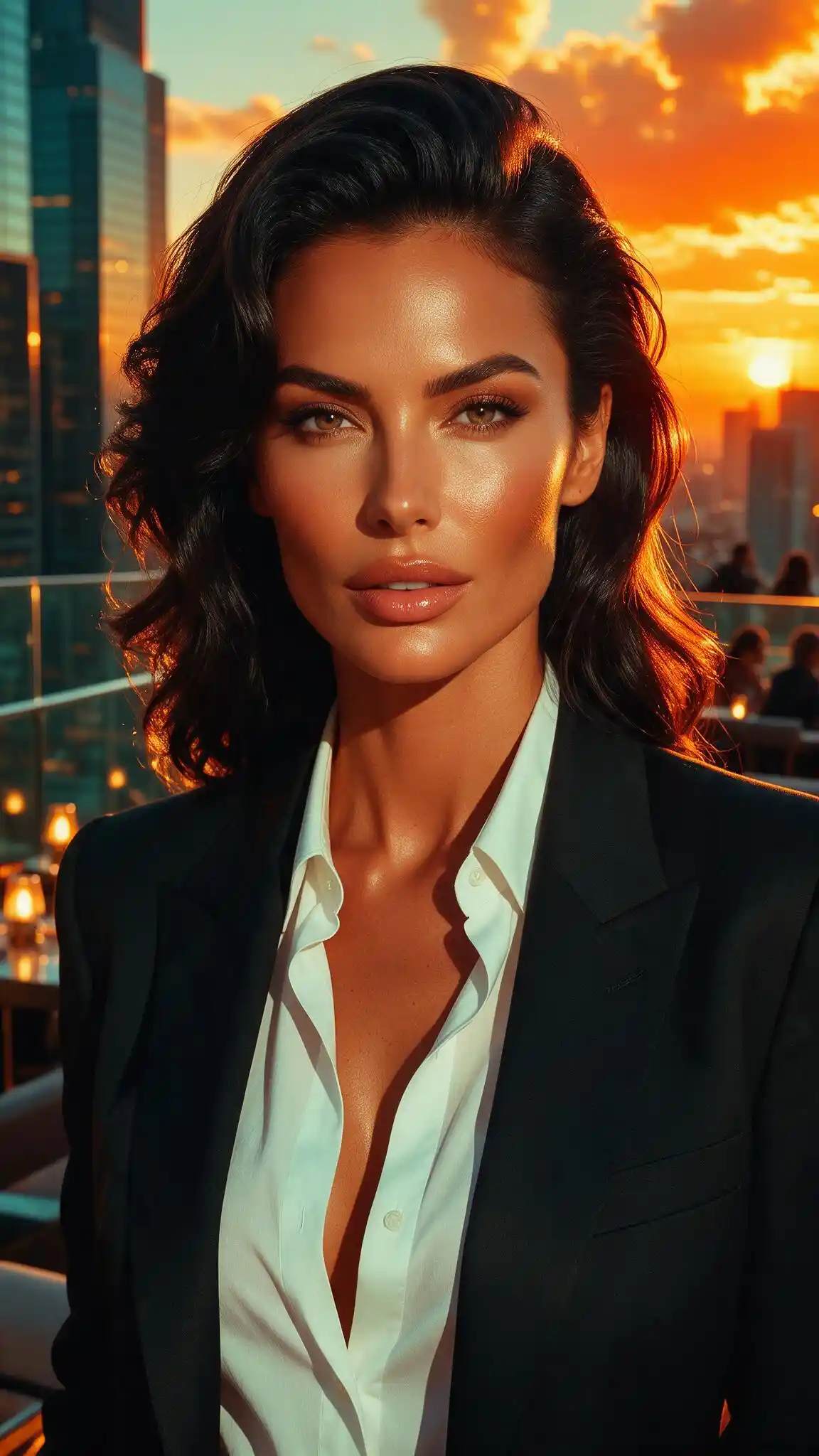
Before - AI Look Removed from a Sunset City Portrait
✨ AI Result
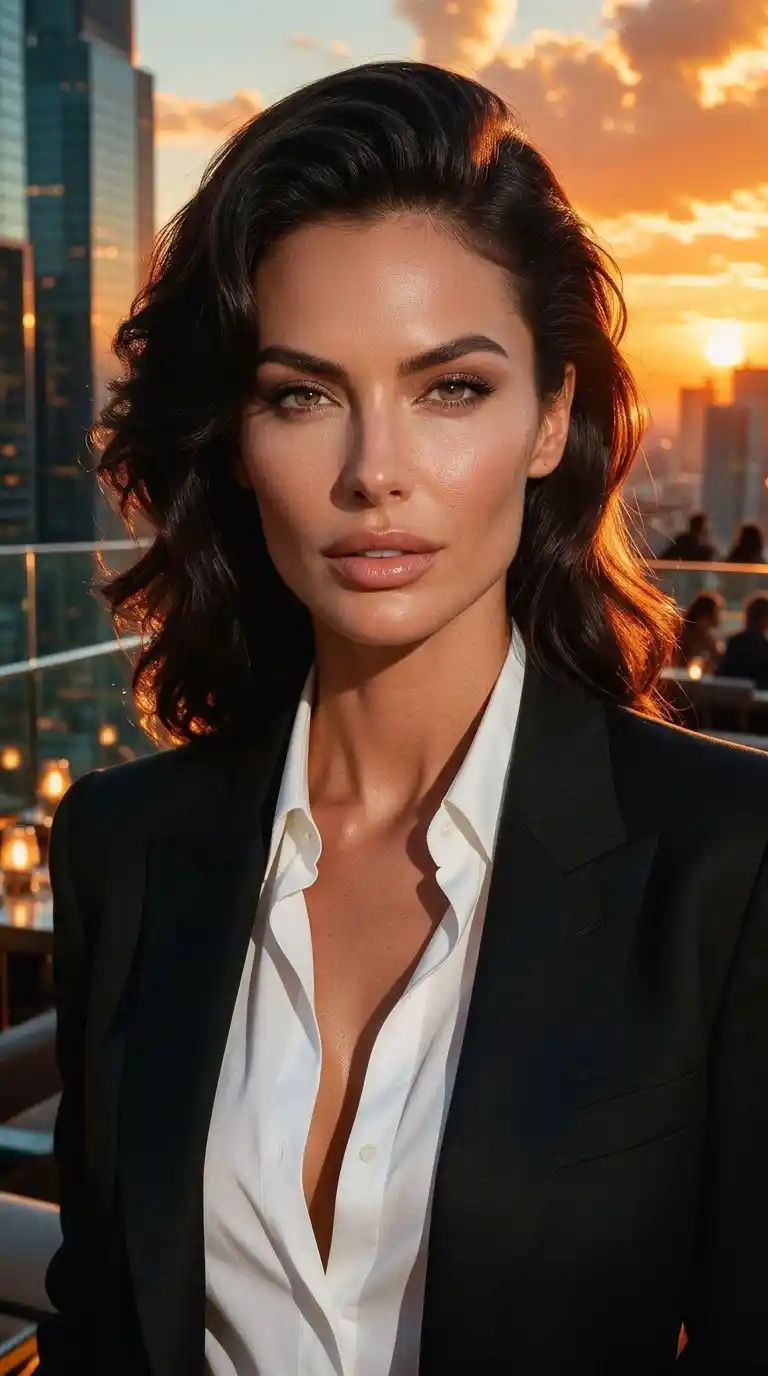
After - AI Look Removed from a Sunset City Portrait

AI Look Removed from a Sunset City Portrait

A sunset portrait showing the hard glossy facial highlights typical of AI images. Removing the AI look here means toning down that orange shine, while the black blazer, white shirt, and city skyline stay recognizable. Facial details also change, so check likeness before using the result.

Sunset PortraitAI Look RemovalGlossy Highlights
Before
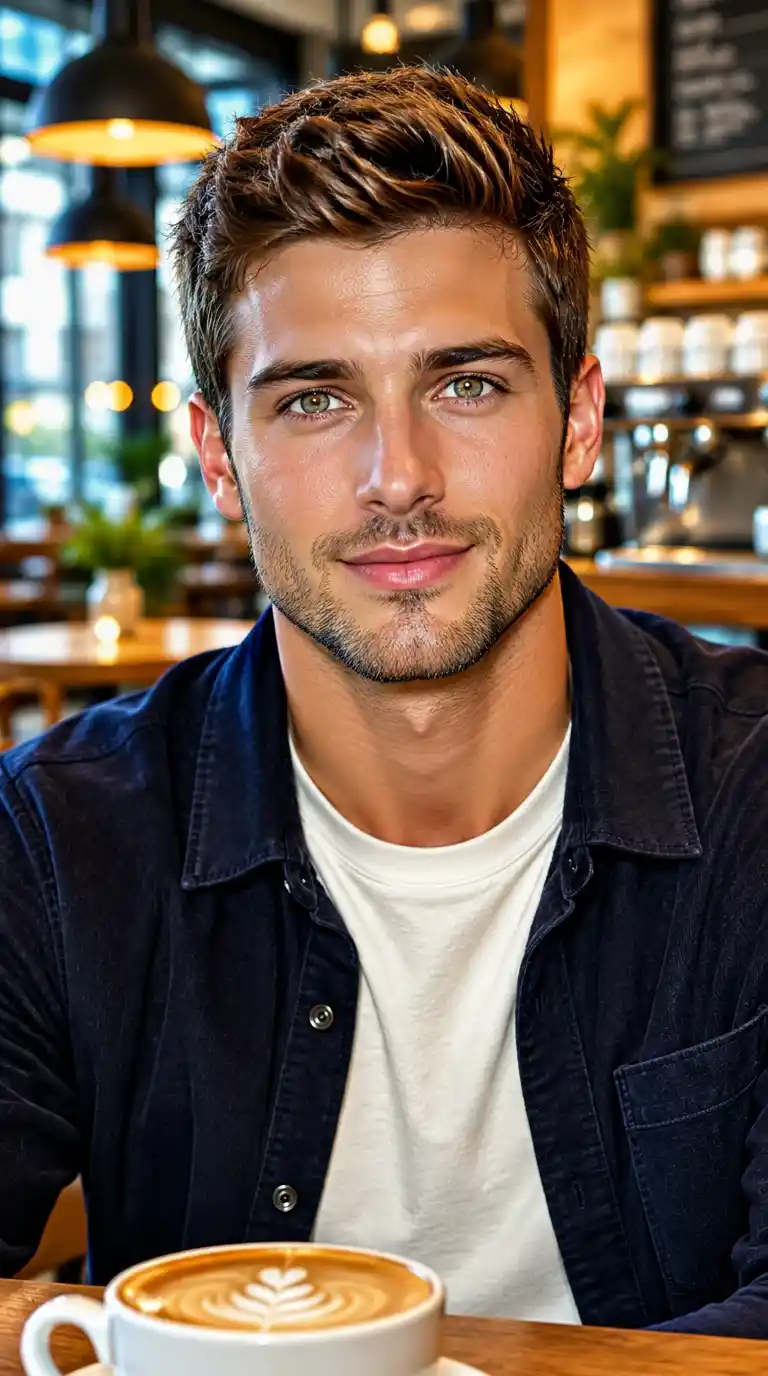
Before - Glossy Forehead Shine Removed from an AI Cafe Portrait
✨ AI Result
After - Glossy Forehead Shine Removed from an AI Cafe Portrait

Glossy Forehead Shine Removed from an AI Cafe Portrait

Pronounced forehead shine is one of the clearest AI tells in this cafe portrait of a man in a navy jacket. The edit removes that glossy AI look for a matte, natural-looking finish, and the coffee cup and cafe setting remain recognizable. Compare facial features and small details before using the result.

Cafe PortraitRemove AI LookMatte Skin
Before
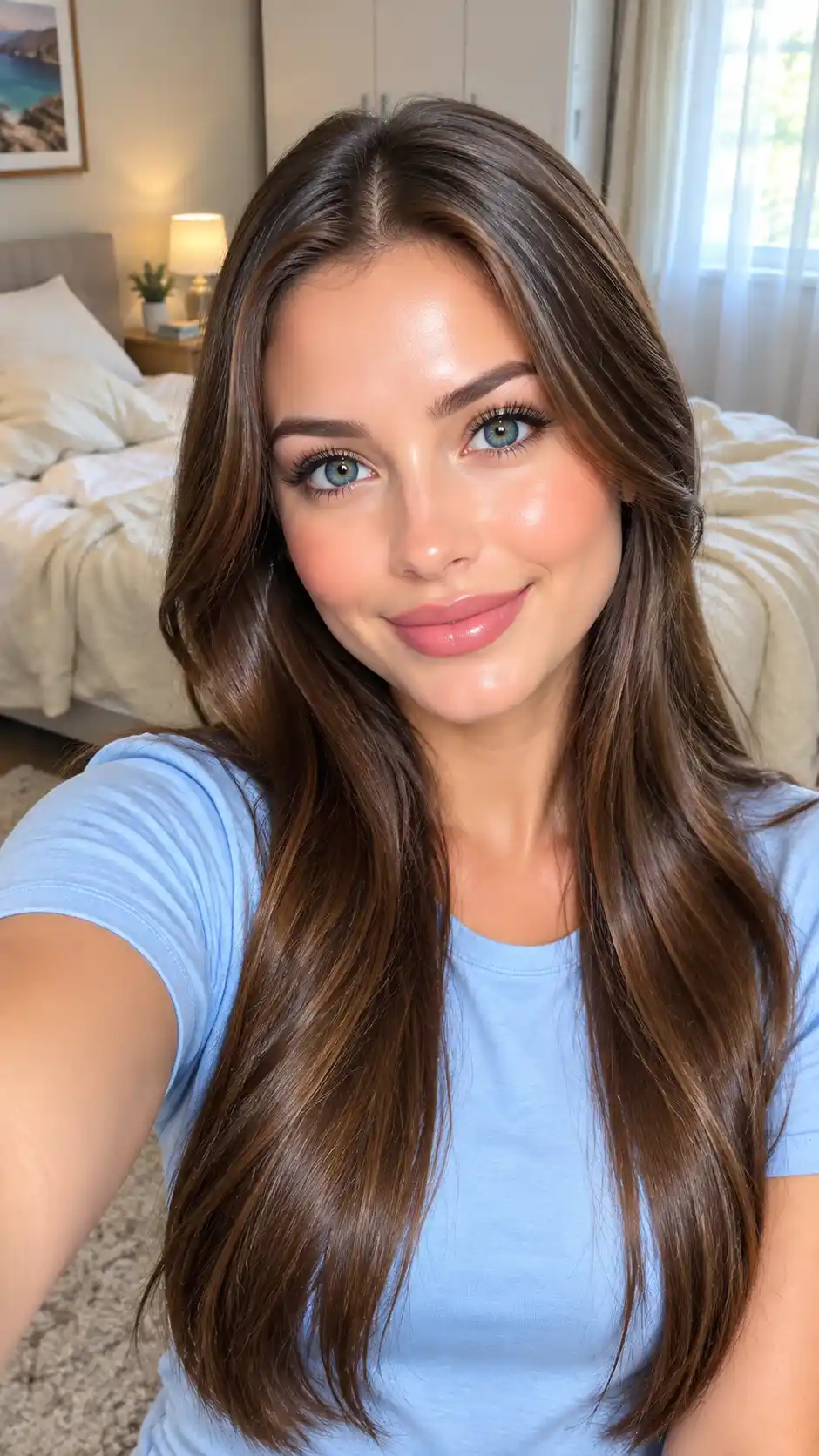
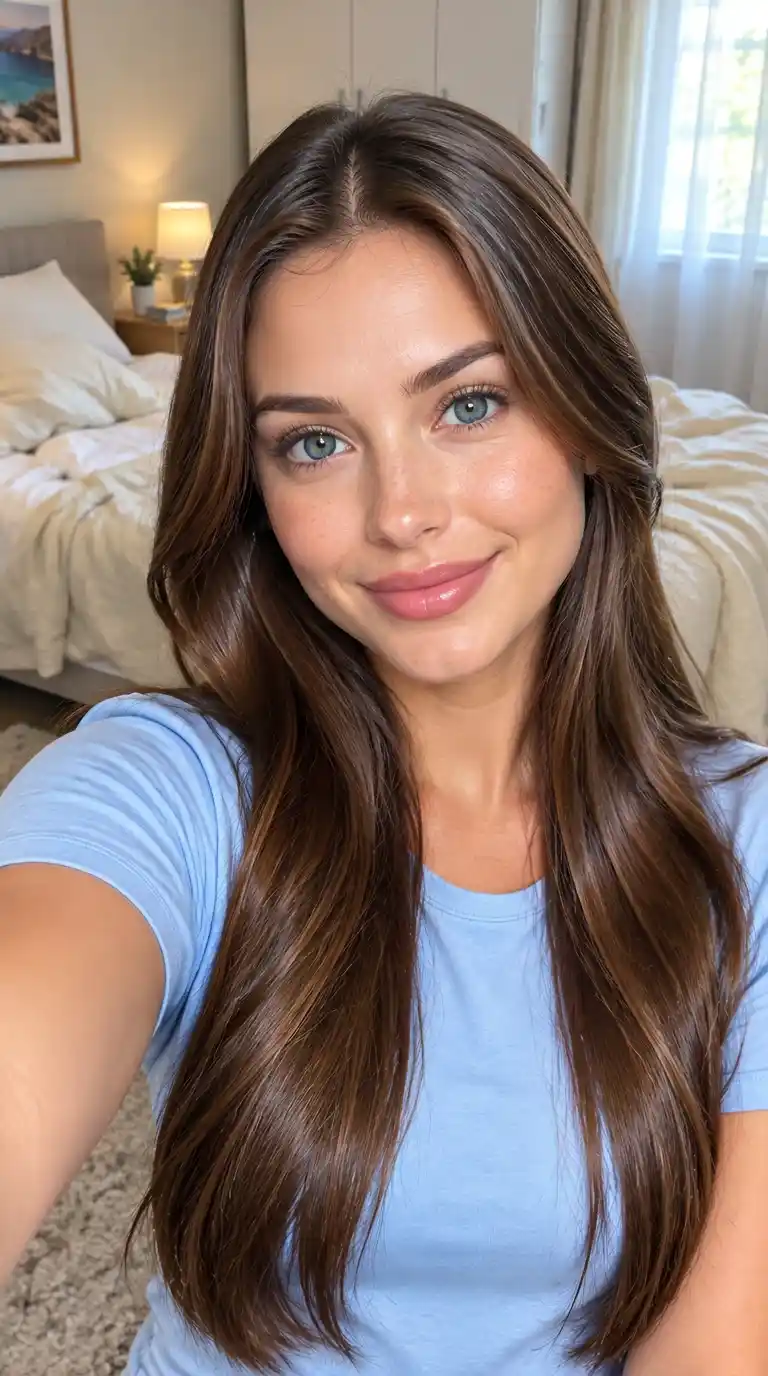
Before - Light-Touch AI Look Removal on an Indoor Selfie
✨ AI Result
After - Light-Touch AI Look Removal on an Indoor Selfie

Light-Touch AI Look Removal on an Indoor Selfie

Not every AI photo needs a strong edit. This indoor selfie shows a subtle pass at removing the AI look: facial highlights and hair detail change slightly, while the light blue top, bedroom setting, and selfie pose remain similar. Review facial likeness rather than assuming every detail is unchanged.

Indoor SelfieSubtle AI Look RemovalHair Detail

Key Features

Powerful tools designed for professionals

Take Down the Gloss and Shine

Hard, oily highlights on foreheads, noses, and cheekbones are a common AI tell. The edit tones them toward matte, natural-looking skin.

Fix Plastic-Looking Skin

Ask for subtle texture and tonal variation in place of the airbrushed, poreless finish that makes AI portraits easy to spot.

Add Depth to Flat Lighting

AI images often show even, directionless light. The edit can introduce coherent shadows and realistic light falloff across the scene.

Make Backgrounds Less Perfect

Overly clean, rendered-looking environments give images away. The edit refines background detail and depth so the scene reads more photographic.

Frequently Asked Questions

Everything you need to know

What makes an AI image look AI-generated?

Common visible tells include glossy or oily skin highlights, waxy poreless texture, flat directionless lighting, and backgrounds that look too clean or rendered. Which tells appear depends on the source image, so match the edit to what you actually see.

Will removing the AI look make my image pass AI detectors?

No. The result is still generated by an AI model, so detectors can still classify it as AI. This edit changes how the image looks to people, not how it classifies to detection tools, and you should follow any disclosure rules where you publish.

How is this different from the AI Image Humanizer tool?

Both tools edit AI images toward a photographic look. The AI Image Humanizer works through three general presets, while this page starts from the specific AI tells you can see, such as gloss, plastic skin, flat light, or over-clean backgrounds. Pick whichever framing matches your problem.

Is Vismora's AI look remover free?

The tool requires sign-in and uses account credits. Each generation costs 10 credits; check your account for available trial credits. You can download the result without a separate download charge.

What image formats and sizes are supported?

Upload one JPG, PNG, or WebP image up to 20MB. This demo uses the model's 1K output setting and selects a supported aspect ratio close to your source, so it does not guarantee the original pixel dimensions.

Will my face or subject stay exactly the same?

The edit asks the model to preserve identity, pose, and composition, but an exact match is not guaranteed. Compare facial proportions, expression, and distinguishing marks with the original before using the result.

What Creates the AI Look in a Photo

Most AI images are spotted by a short list of visible tells rather than one obvious flaw. Learning to name the problem makes the edit easier to target.

Glossy, Oily Skin Highlights

The most common tell is a hard shine across the forehead, nose bridge, and cheekbones, as if the skin were sprayed with oil. Real skin reflects light softly and unevenly; AI renders it as a smooth glaze, especially in warm or sunset lighting.

Waxy, Poreless Texture

Zoom in and AI skin often looks airbrushed: no pores, no stubble, no small blemishes, just an even plastic surface. The uniformity itself is the giveaway, because real cameras pick up texture even in flattering light.

Flat, Directionless Lighting

AI scenes tend to be lit evenly from everywhere. Shadows are faint or inconsistent, and light does not fall off naturally across the scene. Photographs have a light source, and viewers sense its absence even when they cannot name it.

Overly Clean Backgrounds

Rendered-looking environments are another tell: surfaces without wear, backgrounds without clutter or depth of field, and details that stay suspiciously sharp from front to back. Real photos carry small imperfections.

Tips for Removing the AI Look

  • Start from the original export, not a screenshot, so the edit works from full detail.
  • Match the edit to the tell you actually see: gloss, plastic texture, flat light, or a too-perfect scene.
  • Change one thing per pass. Stacking repeated generative edits can introduce new distortions instead of fixing the first one.
  • Check the result at full size and at its intended display size; a fix that looks right zoomed in can look heavy at normal scale.
  • Compare eyes, mouth, jawline, and distinguishing marks with the original before using the image anywhere.
  • Keep the original file. If a pass overshoots, start over rather than editing the edited version.

What Removing the AI Look Cannot Do

This edit changes how an image looks to people; it does not change how AI detectors classify it. The result is still an AI-generated image, so follow any disclosure requirements for the platform where you publish it. Added texture is generated detail, not recovered photographic information, and facial identity, text, and geometry can shift between passes.

For a single harsh shadow in an otherwise real photo, the photo shadow remover targets that specific problem. For glare on glass surfaces, use the photo reflection remover. If you prefer preset-driven edits organized by skin, lighting, and materials, the AI Image Humanizer covers the same goal from a different angle.

More Enhance & Upscale Tools

Explore the rest of the Enhance & Upscale toolkit

Browse all Enhance & Upscale toolsSee every AI tool in the Enhance & Upscale collection

You Might Also Like

Related AI tools from other Vismora collections

Ready to Transform Your Images?

Try Vismora's AI-powered tools now. Free to start.